EZ Tip: How to add highlight color to text in Adobe Illustrator

Natively, Adobe Illustrator doesn't have a text highlighter feature to use as if you'd use in MS Office, but it does have many ways of getting to the same result. However, there are several levels of utility to those results, and today we are exploring results that also bring more value over time...

Cover Image for EZ Tip: How to add highlight color to text in Adobe Illustrator

Natively, Adobe Illustrator doesn't have a text highlighter feature to use as if you'd use in MS Office, but it does have many ways of getting to the same result. However, there are several levels of utility to those results, and today we are exploring results that also bring more value over time to your work. One such value is the ability to edit the text afterwards, followed by the ability to highlight automatically the new text. More than that, you can save this appearance to your Illustrator's library for later use, so you skip over making this effect all over again. With that being said, let's learn how to make one.   Tools: - Adobe Illustrator  

STEP 1

Add a line of text to your canvas. Grab the Type Tool (T), click on canvas and add a text. Choose a font you like.
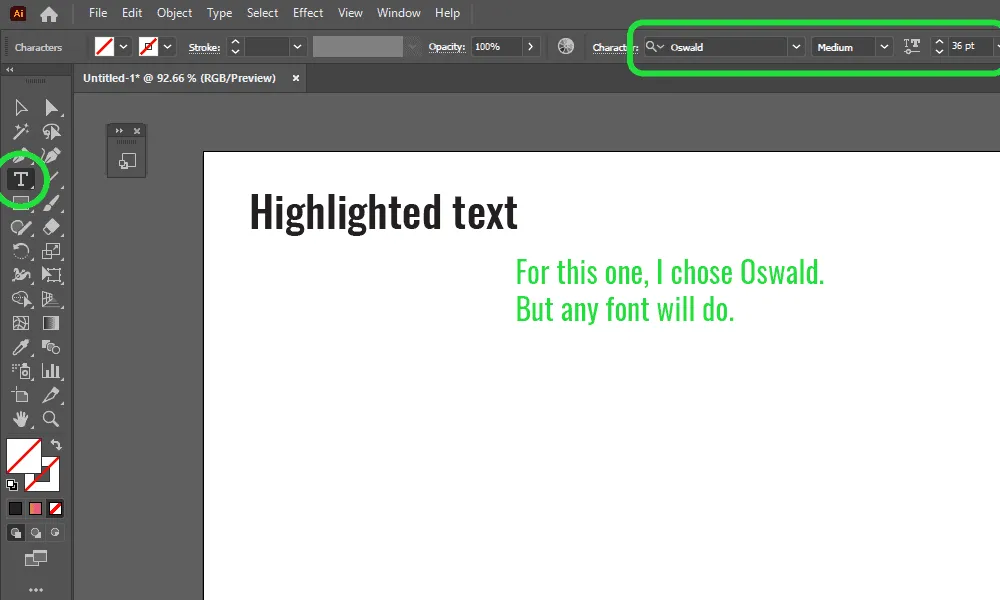
How to add highlight color to text in Adobe Illustrator Step 1

STEP 2

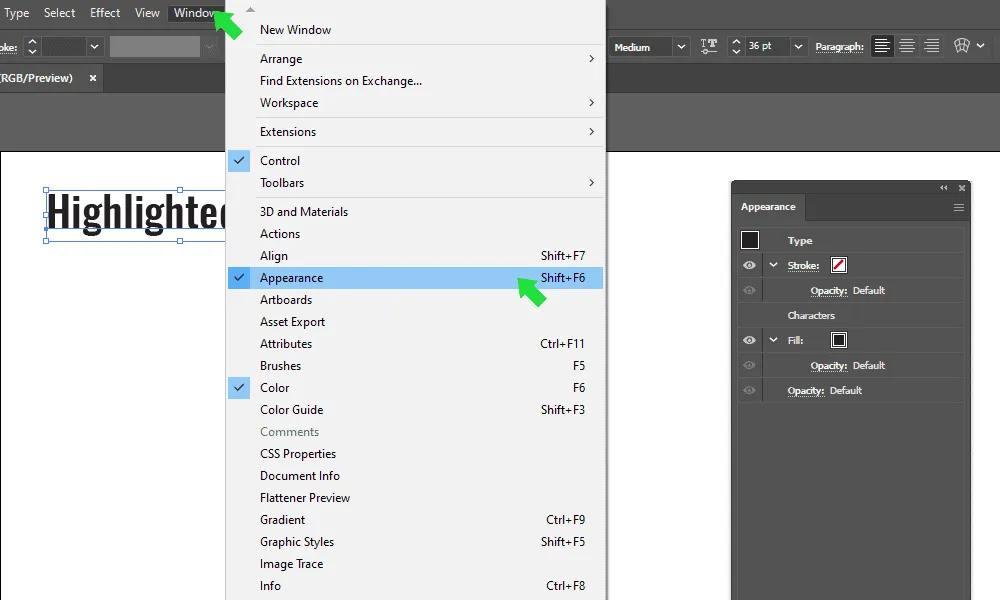
Bring up the Appearance panel. Go to Window -> Appearance.
How to add highlight color to text in Adobe Illustrator Step 2

STEP 3

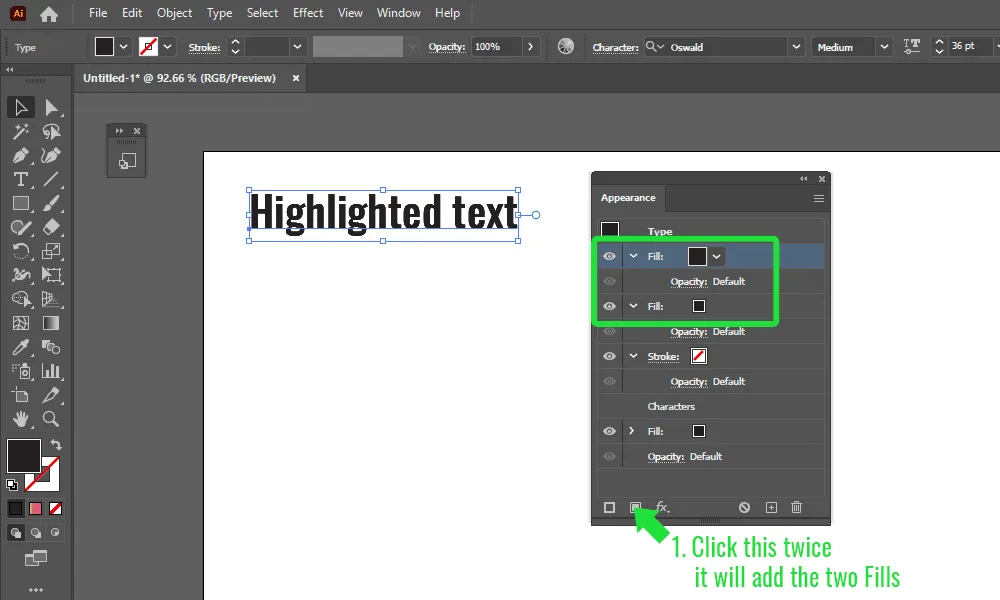
Click the Add New Fill icon twice.
How to add highlight color to text in Adobe Illustrator Step 3

STEP 4

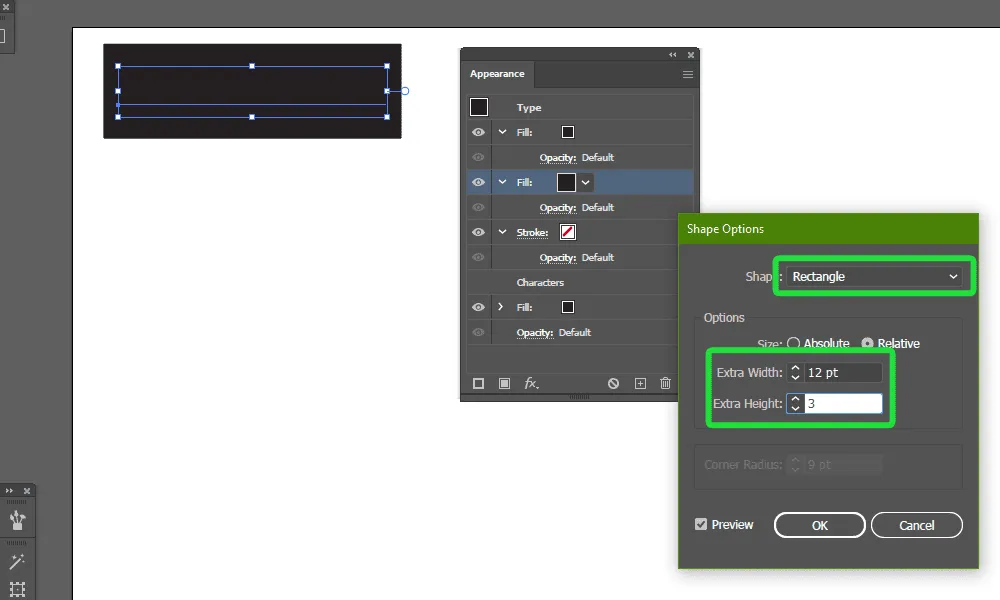
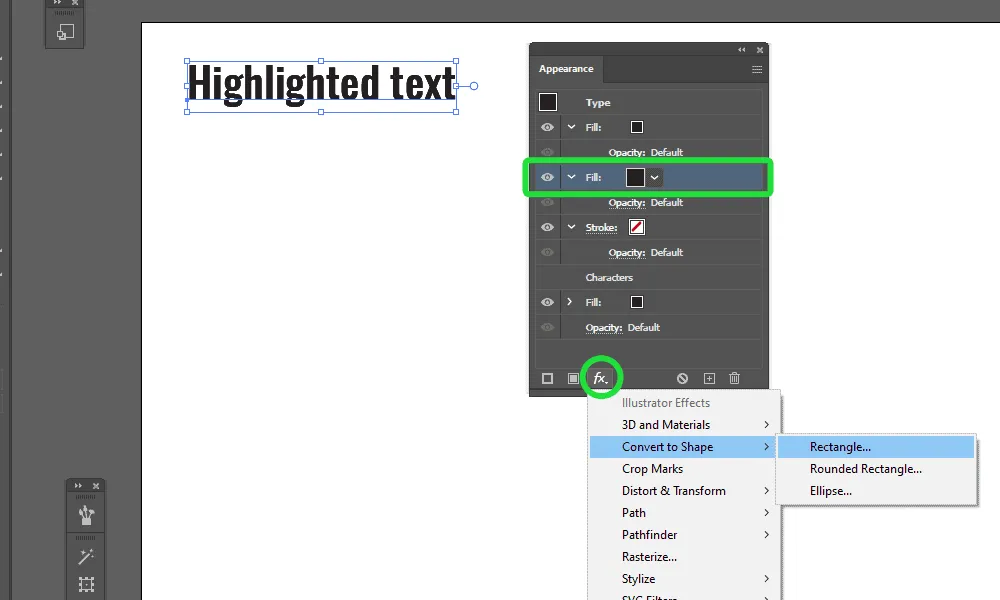
Select the lower Fill, apply the Convert to Shape effect.
How to add highlight color to text in Adobe Illustrator Step 4-1
How to add highlight color to text in Adobe Illustrator Step 4-2

STEP 5

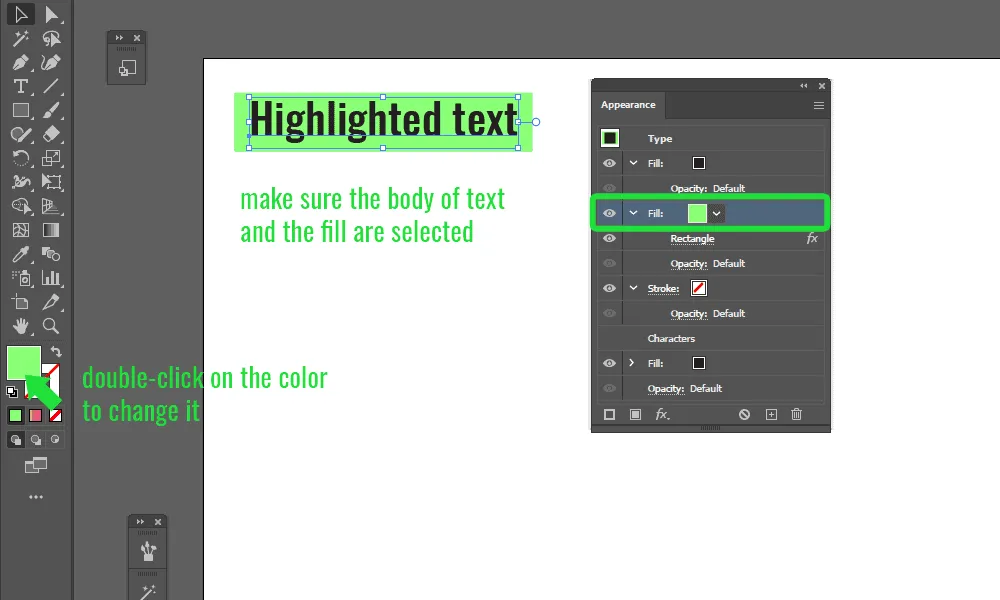
Change the fill color to a bright green, or a color of your choosing.
How to add highlight color to text in Adobe Illustrator Step 5

STEP 6

Select the first color and change that one, too.
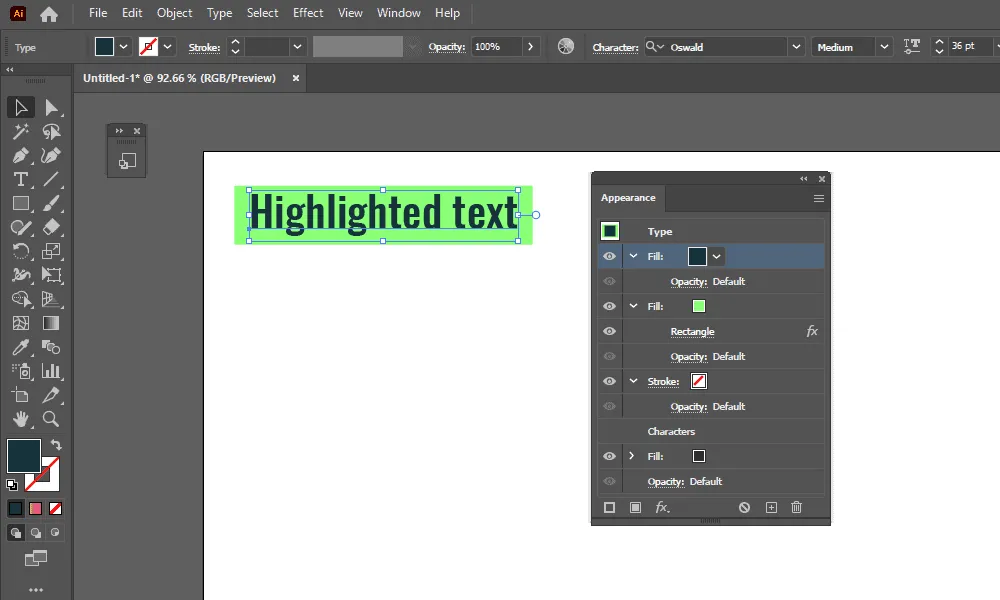
How to add highlight color to text in Adobe Illustrator Step 6

STEP 7

Open the Graphic Styles panel, add it to the panel and save it.
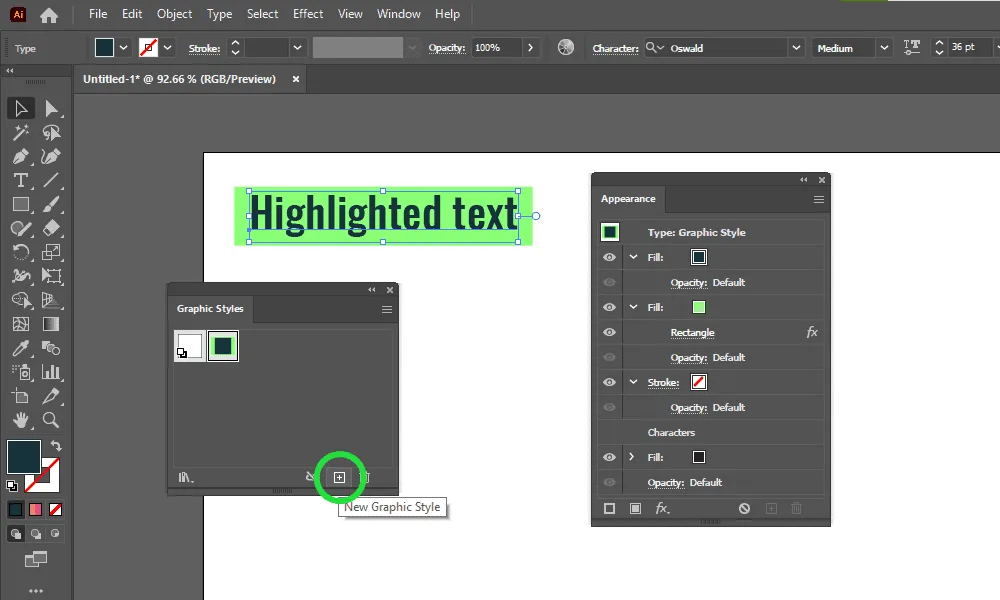
How to add highlight color to text in Adobe Illustrator Step 7

STEP 8

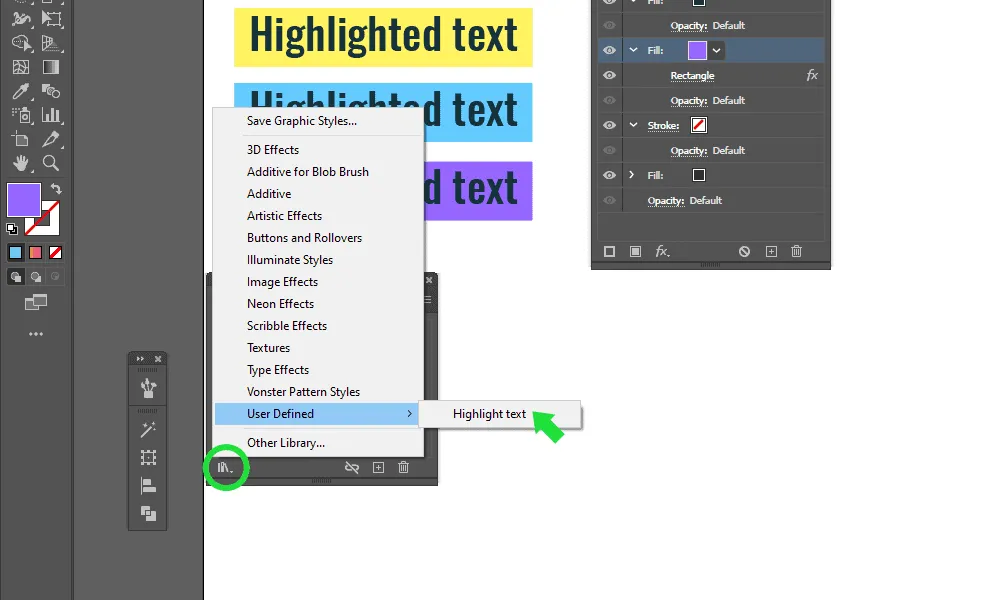
Add color variations to yellow, blue and purple. Feel free to add more if you want.
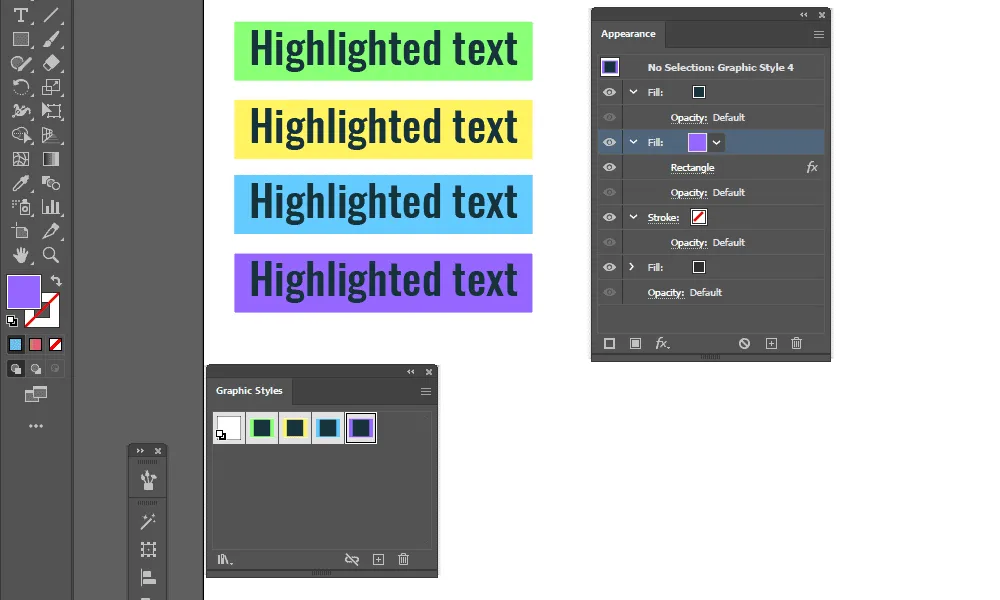
How to add highlight color to text in Adobe Illustrator Step 8

STEP 9

Save it to your library to access it in future projects easier.
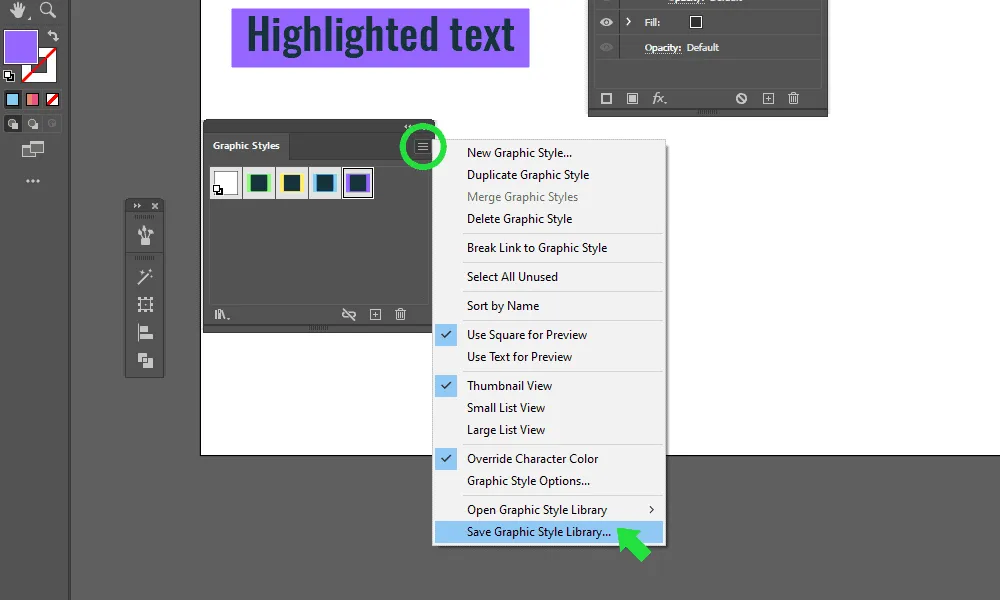
How to add highlight color to text in Adobe Illustrator Step 9-1
How to add highlight color to text in Adobe Illustrator Step 9-2