EZ Tip: How To Add Style To Your Text With Adobe Illustrator

One of the big challenges we face in graphic design is the speed at which results are delivered. This means we are sometimes incentivized to looking for ways to increase our productivity without sacrificing the quality of the final design. Luckily, the Graphic Styles are here to save the...

Cover Image for EZ Tip: How To Add Style To Your Text With Adobe Illustrator

One of the big challenges we face in graphic design is the speed at which results are delivered. This means we are sometimes incentivized to looking for ways to increase our productivity without sacrificing the quality of the final design. Luckily, the Graphic Styles are here to save the day.

What are graphic styles?

Graphic styles are presets you can quickly apply to an object to change its appearance. It works very much like a template, but it is stored within a library that you can import in any other document via the Graphic Styles panel. You can use the default ones and you can also create your own. Let's learn how. We're using the following resources:  

Adobe IllustratorAlfa Slab One font (or any other thick font)

STEP 1

Create a new document. Bring up the Appearance panel. Go to File -> New to create a new document and Window -> Appearance to toggle the Appearance panel.
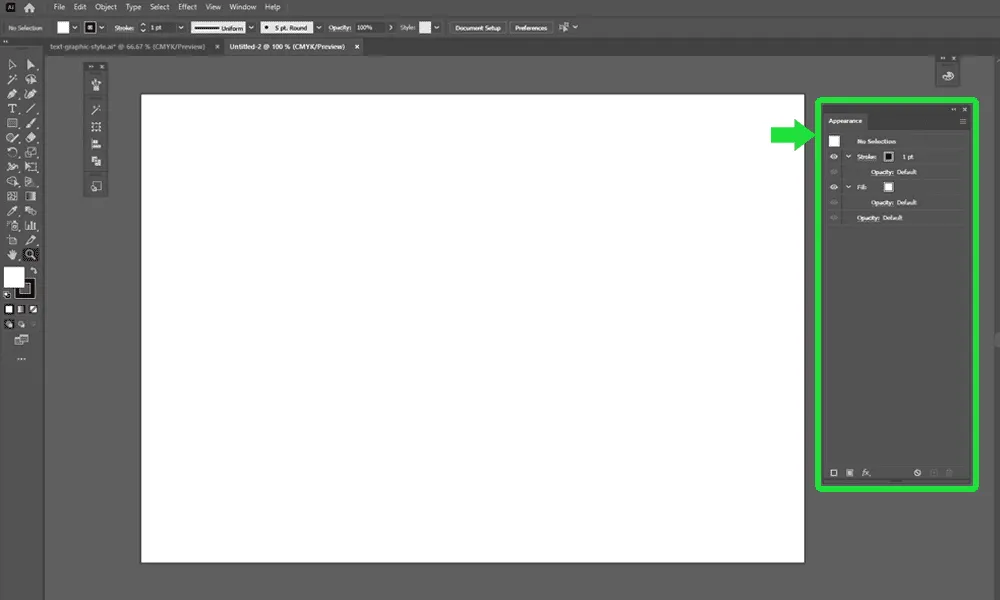
How To Add Style To Your Text With Adobe Illustrator Step 1

STEP 2

Add a type text at about 120pt  size, hit Cmd + A to select the text  and set its font to Alfa Slab One. Grab the Type Tool (T), click on the canvas and write your title.  
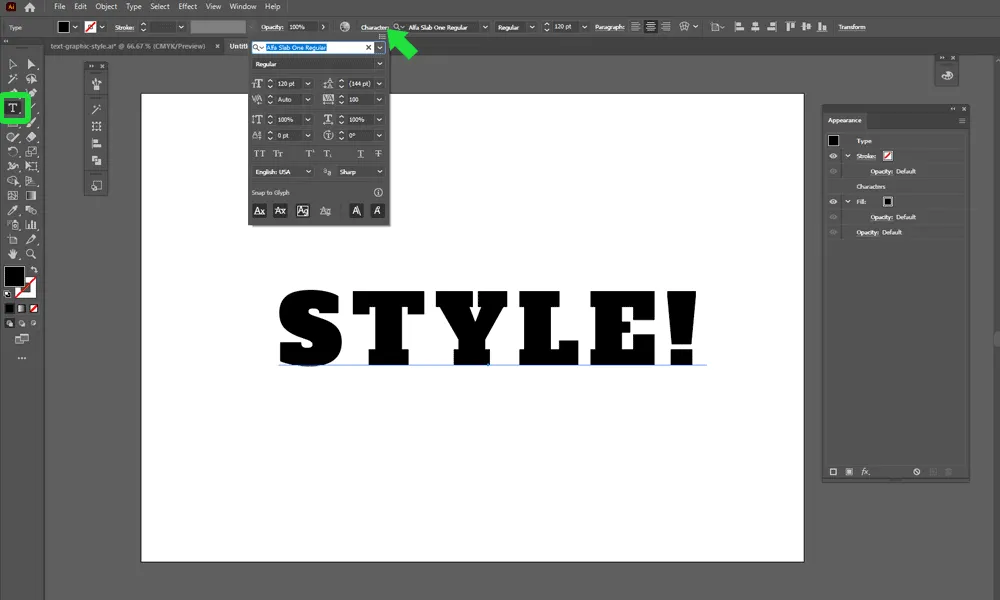
How To Add Style To Your Text With Adobe Illustrator Step 2

STEP 3

Remove the fill of the font. Don't worry, it is still there, it's just that it is hidden. Click the "None" (/) button to remove it. If it doesn't work, press X, first, then /.  
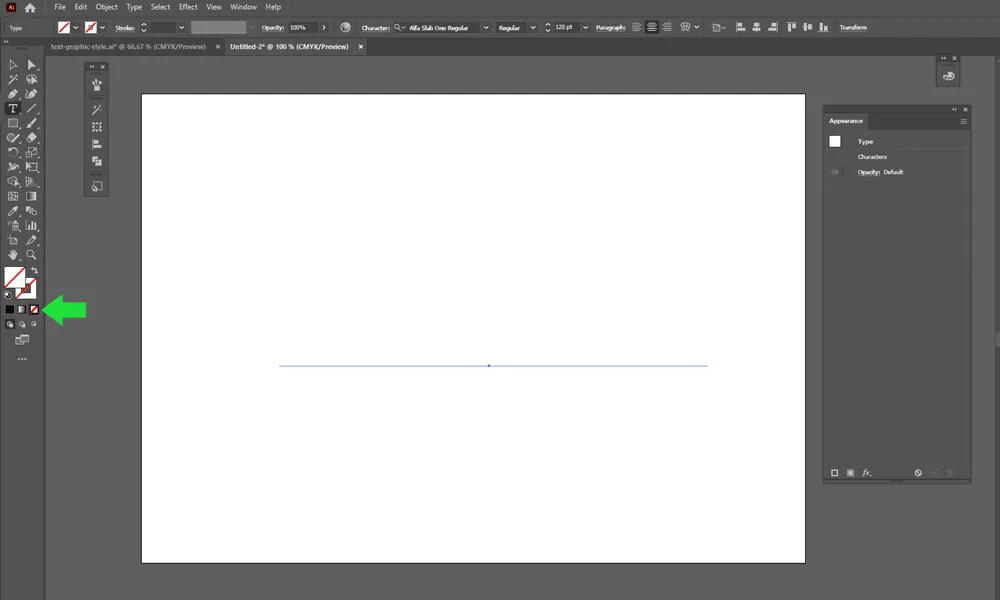
How To Add Style To Your Text With Adobe Illustrator Step 3

STEP 4

In the Appearance panel, click the Add New Fill button.   
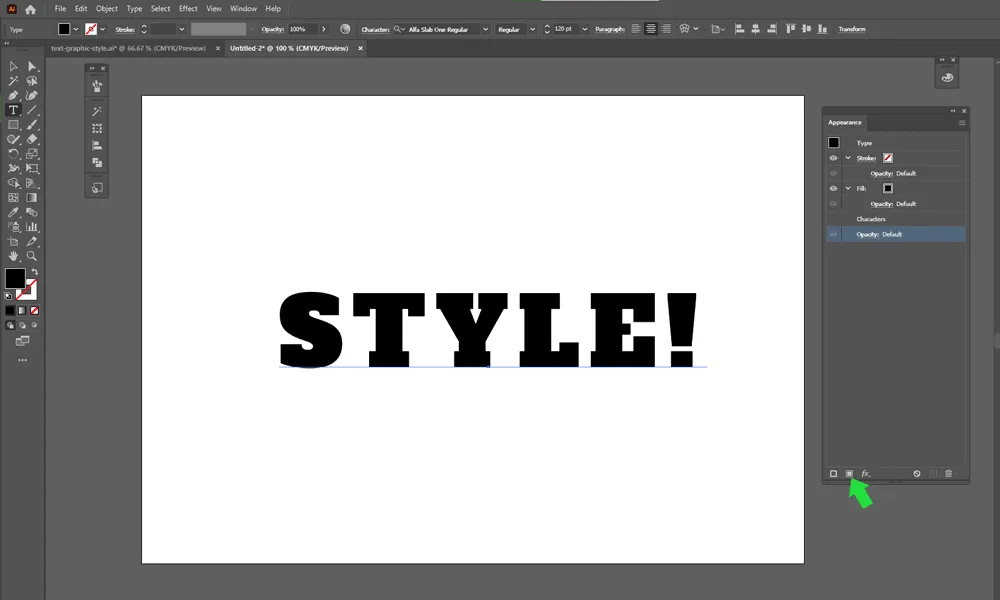
How To Add Style To Your Text With Adobe Illustrator Step 4

STEP 5

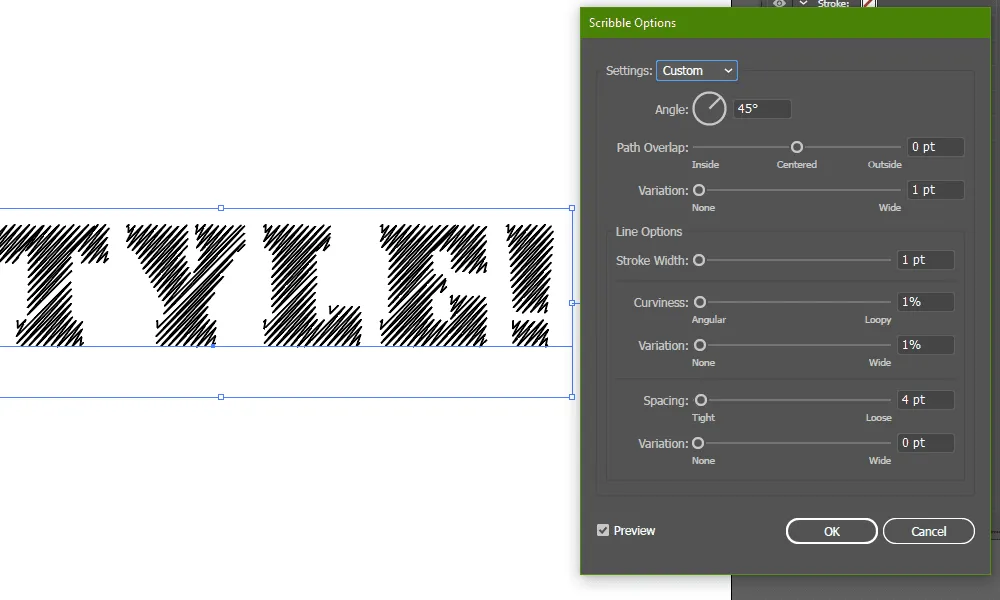
With the Fill selected, add a Scribble effect to it, to make it look hatched. Click the 'fx' button -> Stylize  -> Scribble with the values shown below.   
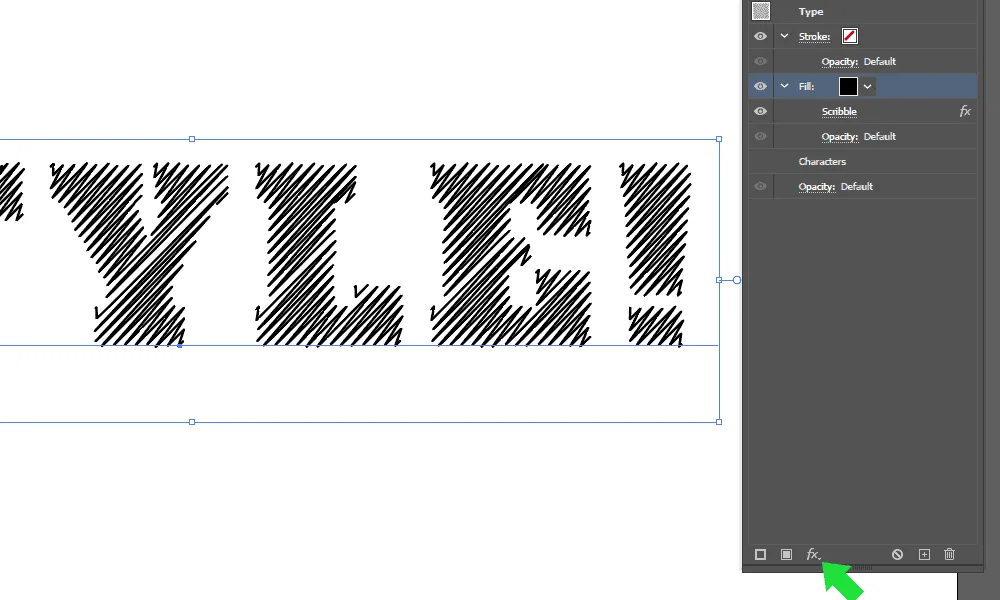
How To Add Style To Your Text With Adobe Illustrator Step 5-1
How To Add Style To Your Text With Adobe Illustrator Step 5-2

STEP 6

Click the Stroke button and set the value of the stroke to 3 pt.  
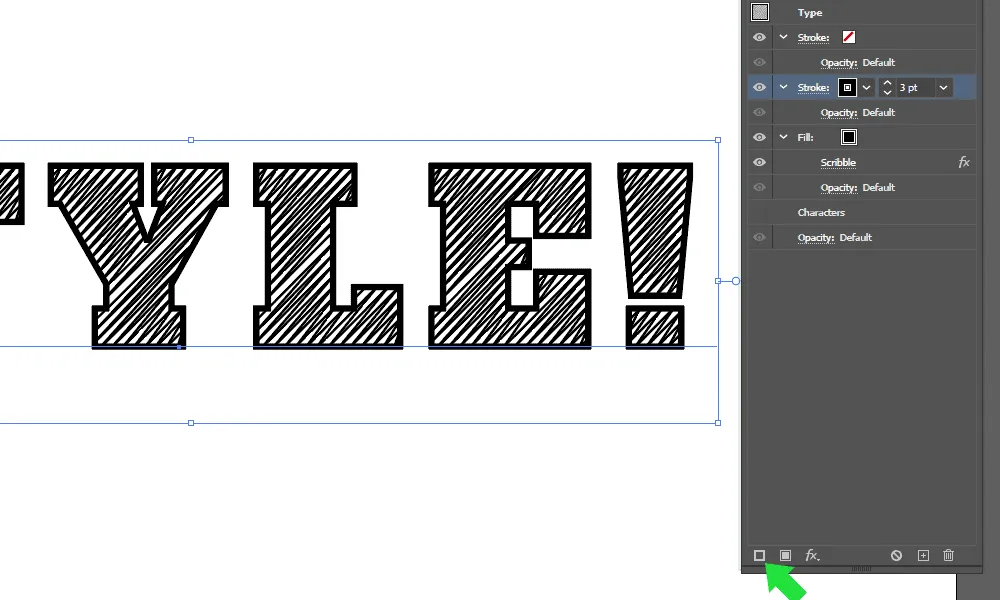
How To Add Style To Your Text With Adobe Illustrator Step 6

STEP 7

Pull the text out of the canvas or add a mid-tone gray background to reduce the visual contrast and to spot transparency easier. Add a Roughen effect to the Stroke, using the values below or similar. Go to 'fx' -> Distort & Transform -> Roughen  
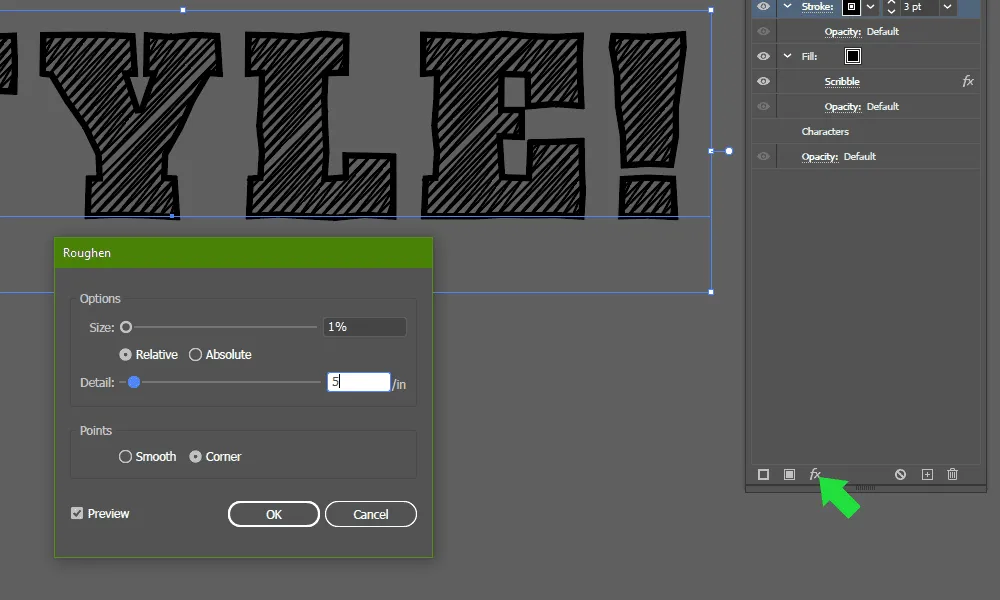
How To Add Style To Your Text With Adobe Illustrator Step 7

STEP 8

Click the 'Stroke' label and make the corners round.  
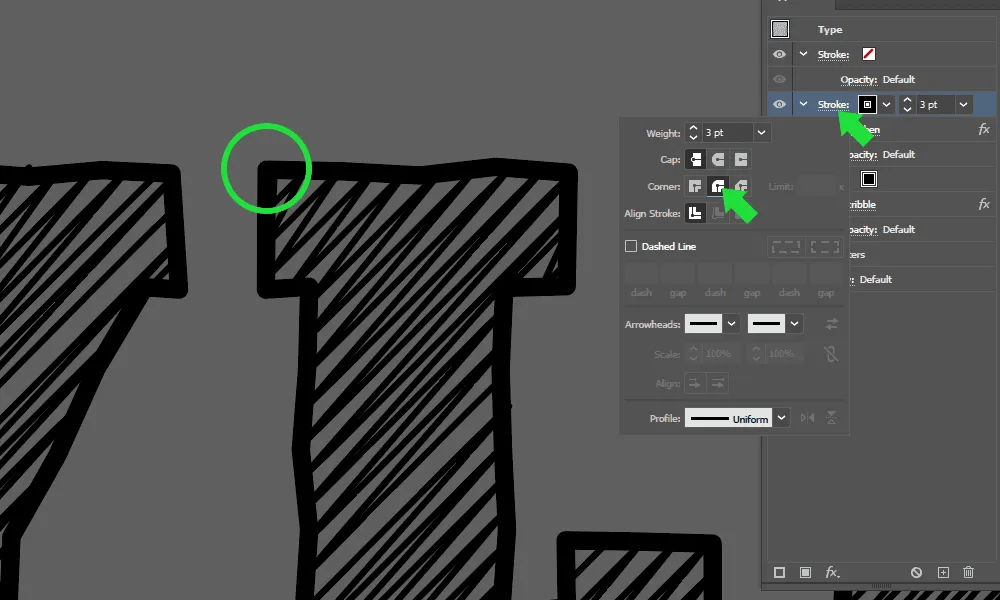
How To Add Style To Your Text With Adobe Illustrator Step 8

STEP 9

Add another Fill, change the color and pull it below the first one.  
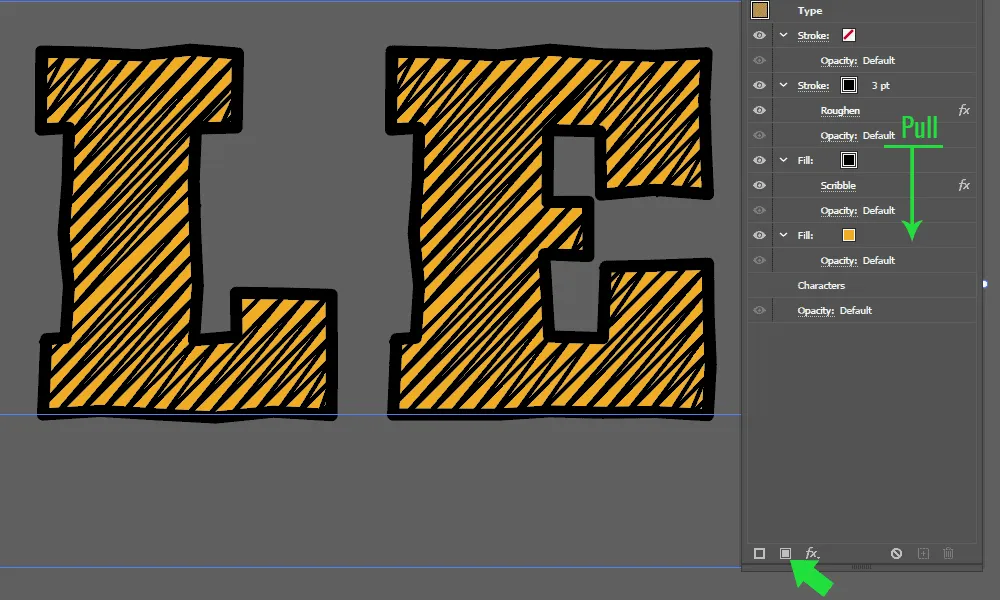
How To Add Style To Your Text With Adobe Illustrator Step 9

STEP 10

With the same Fill selected, click the Duplicate Selected Item button.   
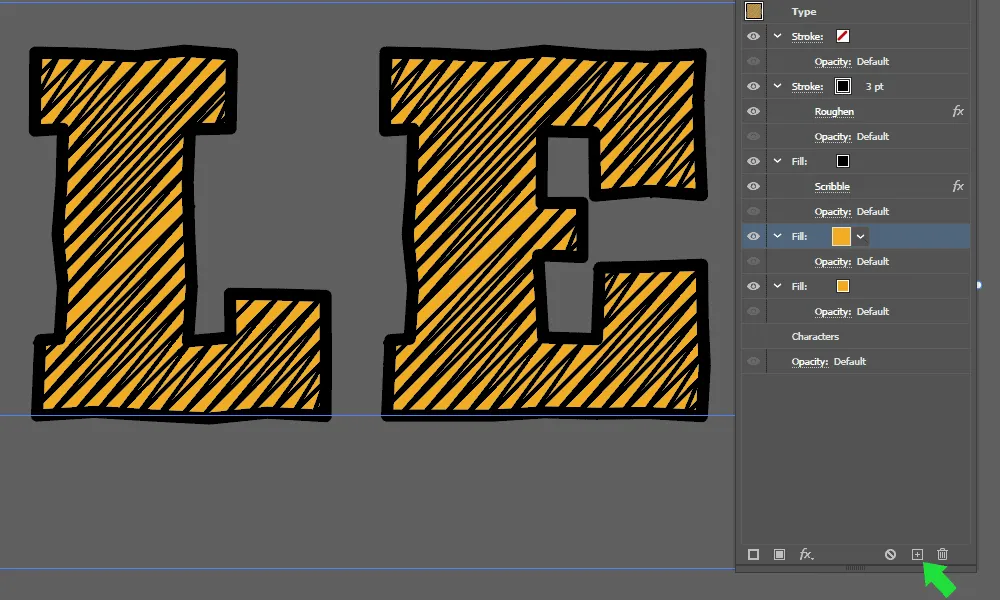
How To Add Style To Your Text With Adobe Illustrator Step 10

STEP 11

Add a Transform effect and move it downwards, with 12pt on vertical, as shown below. Click fx -> Distort & Transform -> Transform  
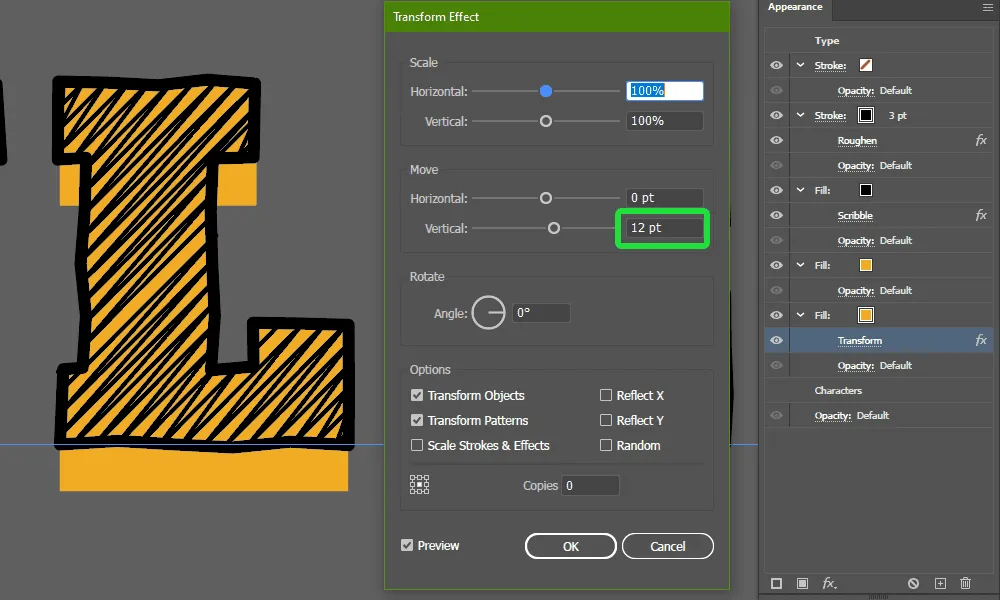
How To Add Style To Your Text With Adobe Illustrator Step 11

STEP 12

Add a 2pt Offset Path to make the corners rounder, with 'Rounded' setting for Joins. Go to fx -> Path -> Offset Path.
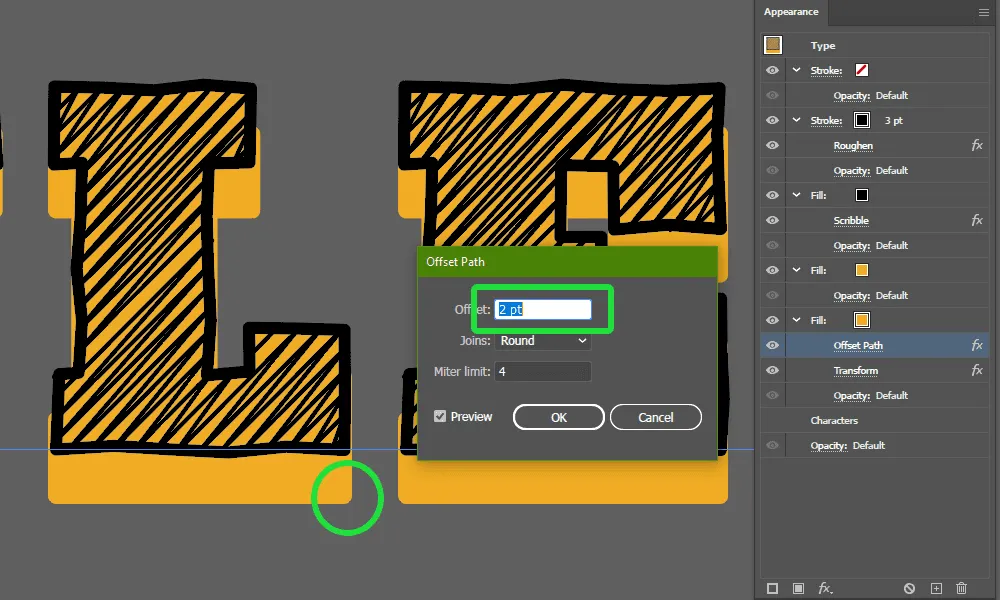
How To Add Style To Your Text With Adobe Illustrator Step 12

STEP 13

Duplicate this Fill, then change the Fill color to a bright orange and the Transform value to 24 pt.  
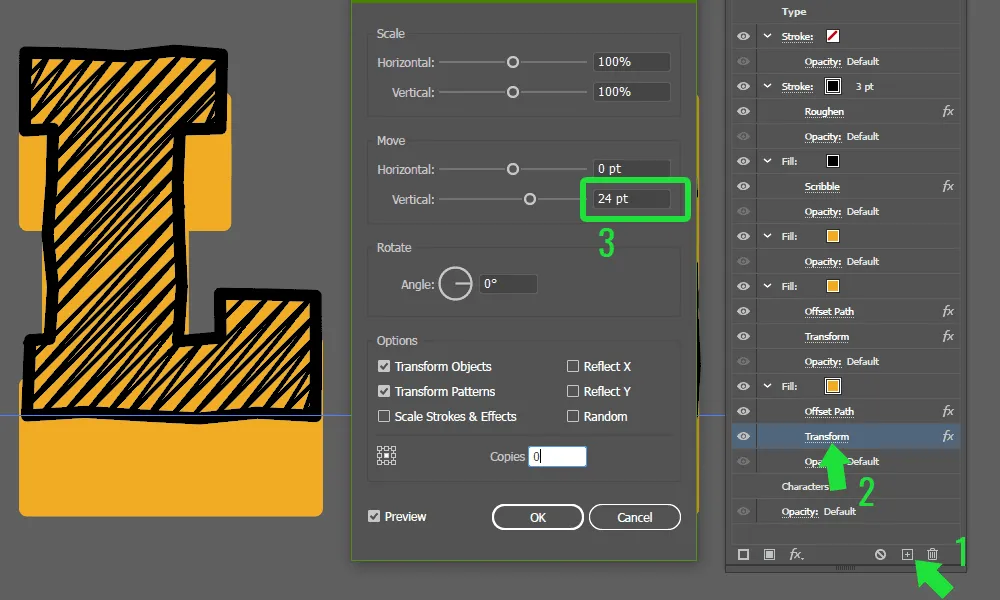
How To Add Style To Your Text With Adobe Illustrator Step 13

STEP 14

Change the Stroke and the scribbled Fill colors to white.    
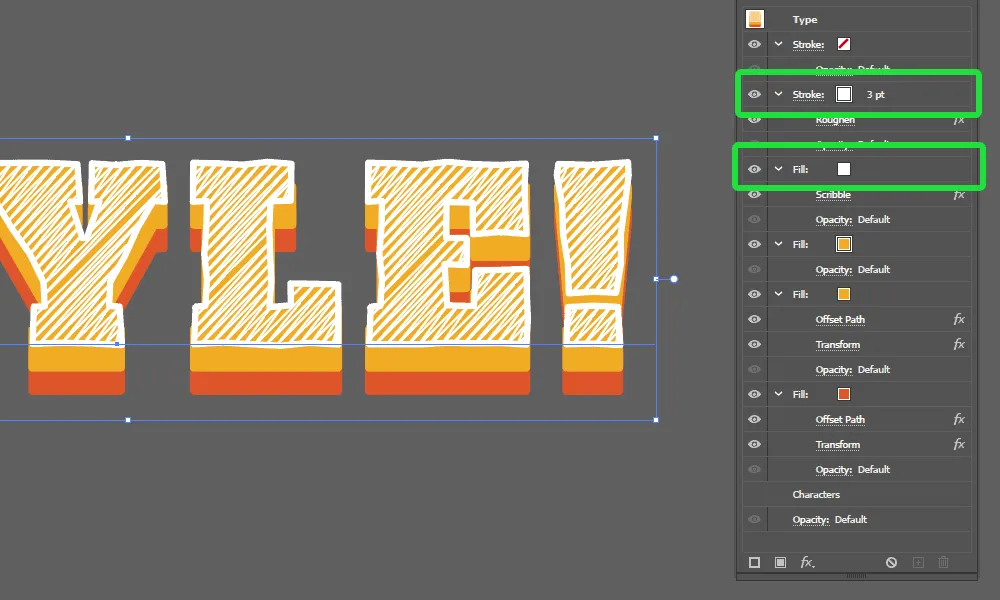
How To Add Style To Your Text With Adobe Illustrator Step 14

STEP 15

Duplicate the first yellow Fill and add a gradient to it.
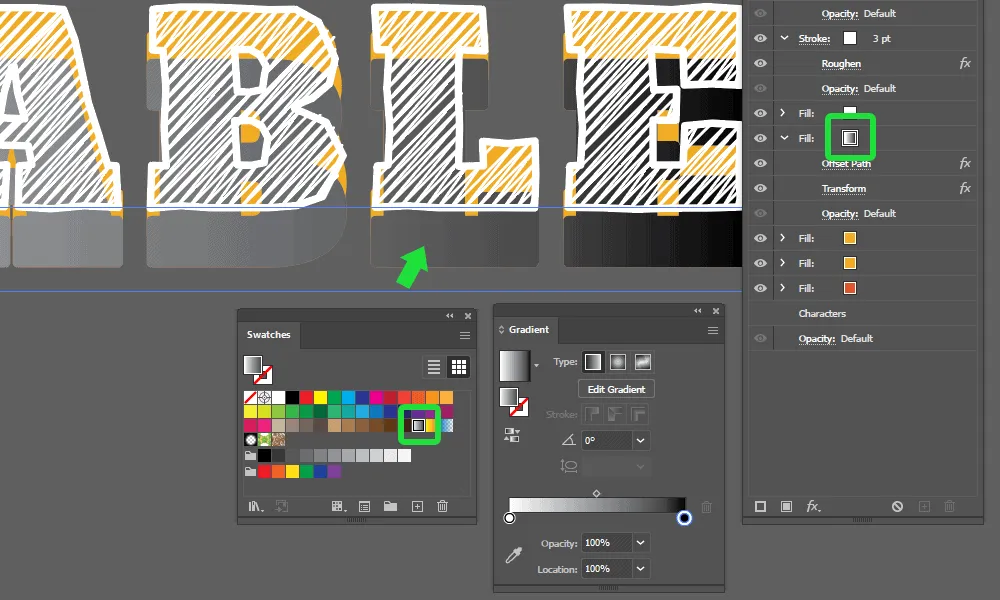
How To Add Style To Your Text With Adobe Illustrator Step 15

STEP 16

Set the Gradient rotation to -90 degrees and add a 24pt transform and a 2pt Offset Path, to match the other fills.  
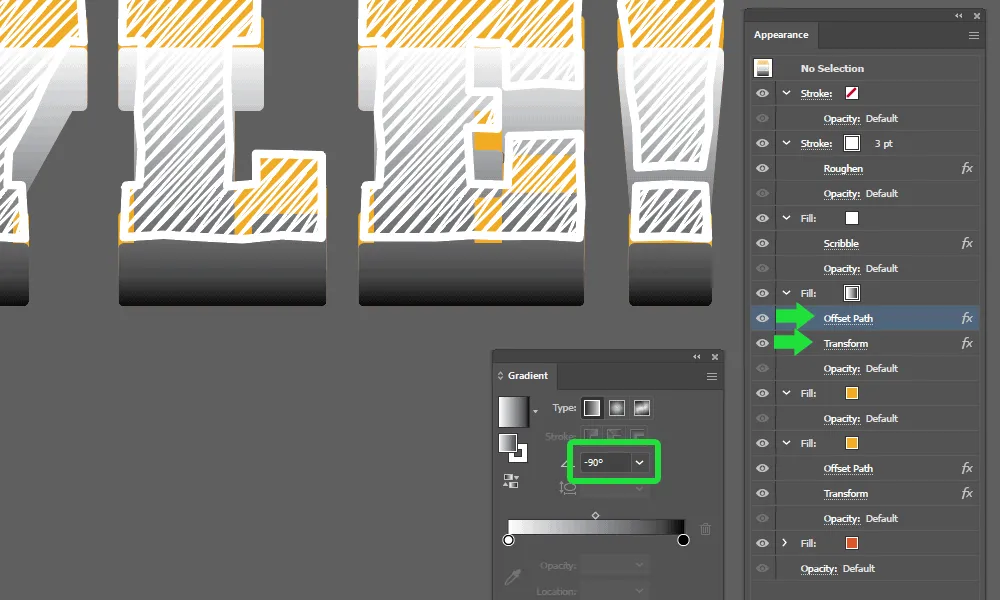
How To Add Style To Your Text With Adobe Illustrator Step 16

STEP 17

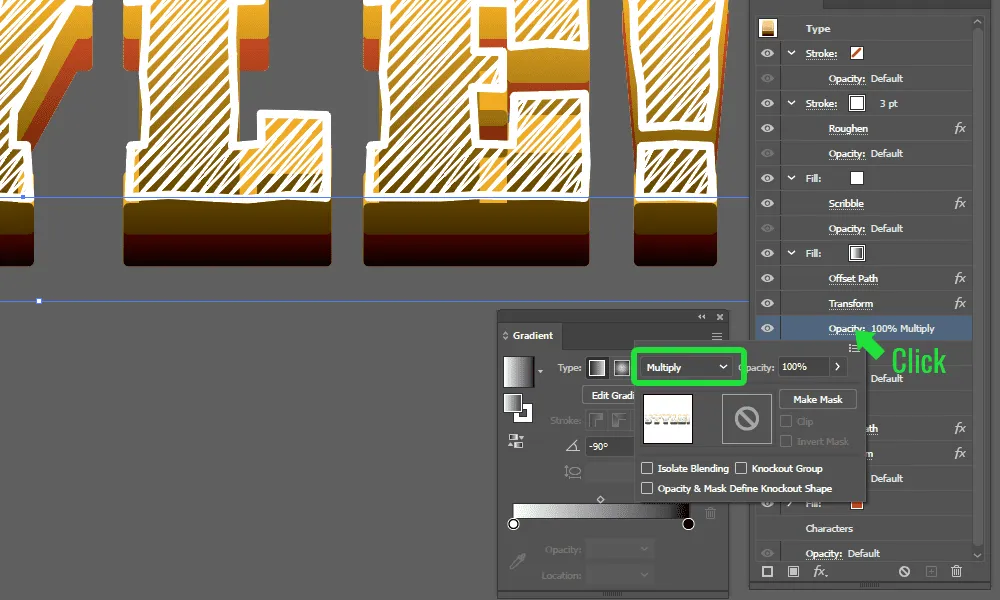
Set the Opacity to Multiply.  

How To Add Style To Your Text With Adobe Illustrator Step 17

STEP 18

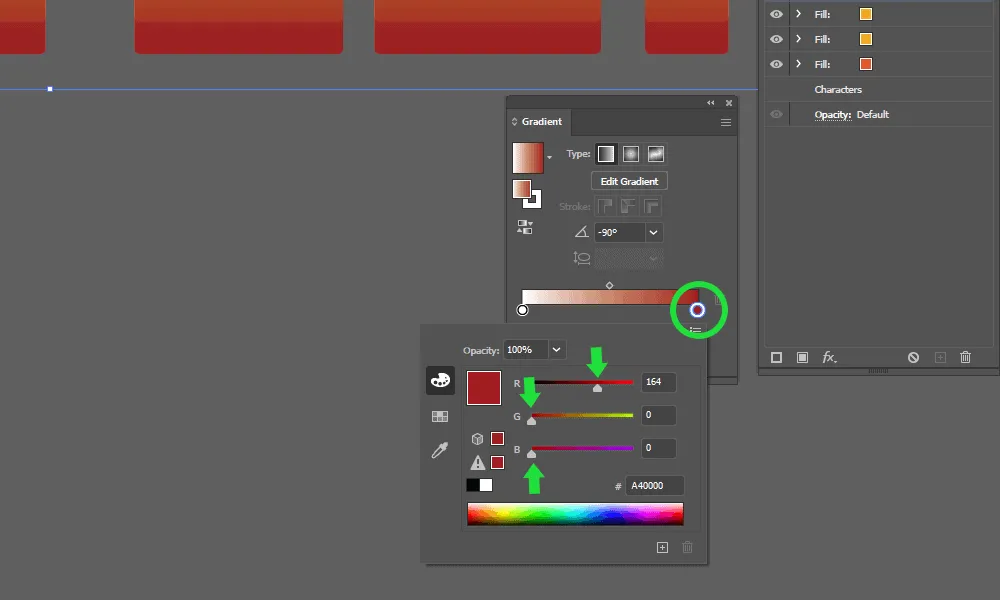
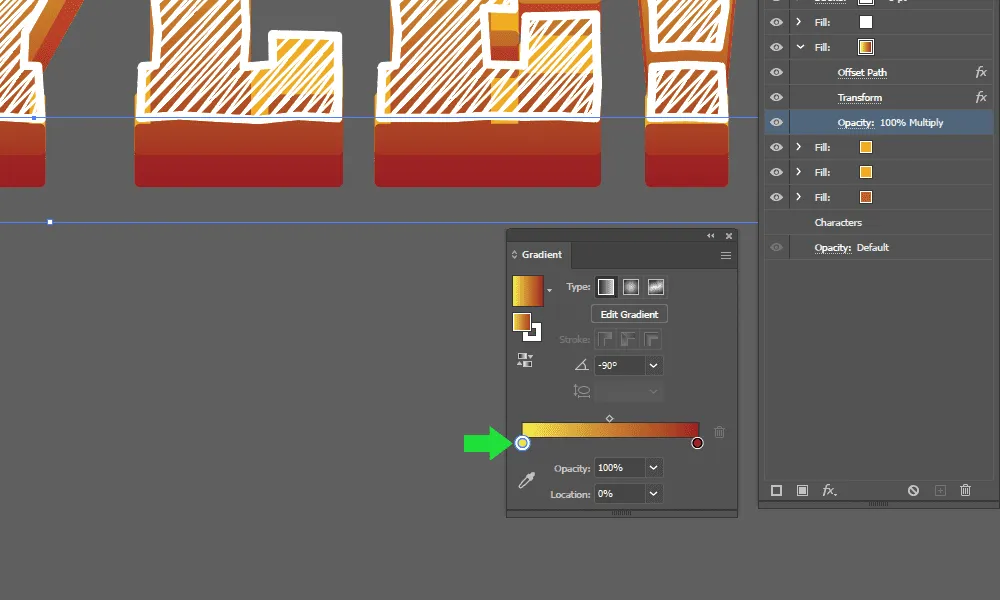
Change the colors of the gradient to warmer colors. This adds mood lighting to the text and removes that muddiness the white-to-black gradient makes.  
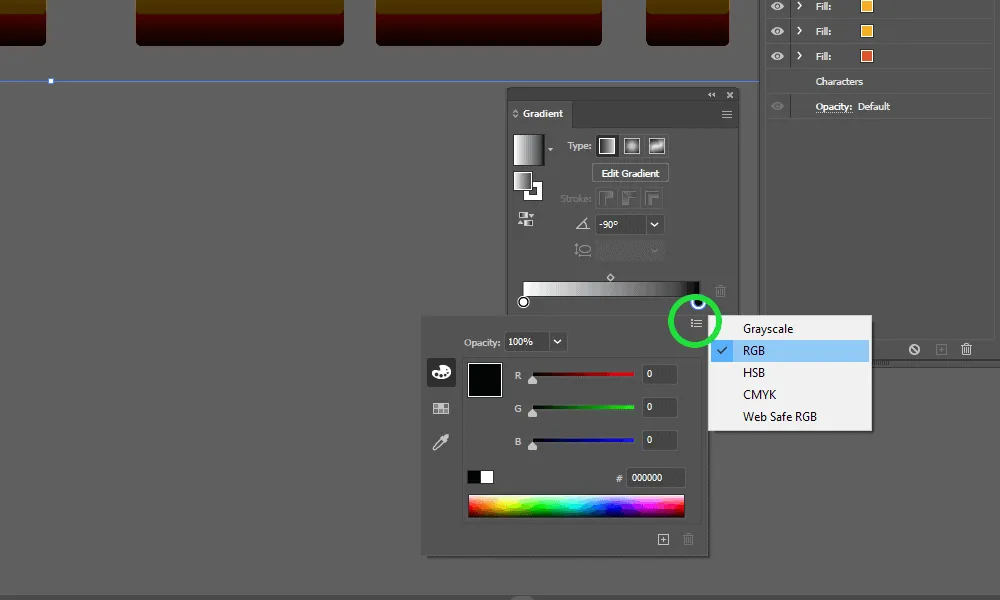
How To Add Style To Your Text With Adobe Illustrator Step 18-1
How To Add Style To Your Text With Adobe Illustrator Step 18-2
How To Add Style To Your Text With Adobe Illustrator Step 18-3

 STEP 19

Open the Graphic Styles panel and add the new effect to it. You can now save it to use it later, too. Go to Window -> Graphic Style to toggle the panel. 
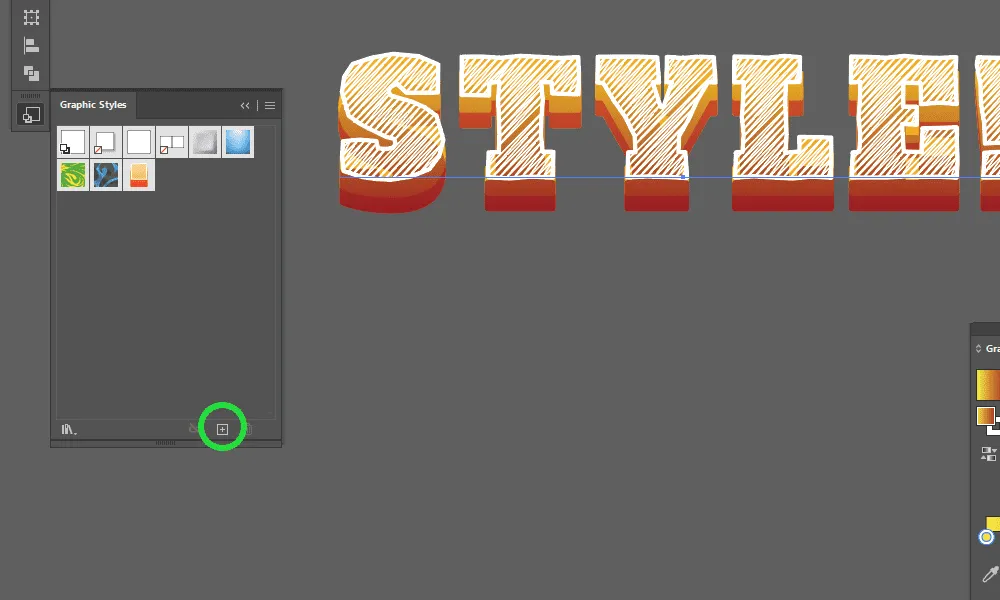
How To Add Style To Your Text With Adobe Illustrator Step 19-1

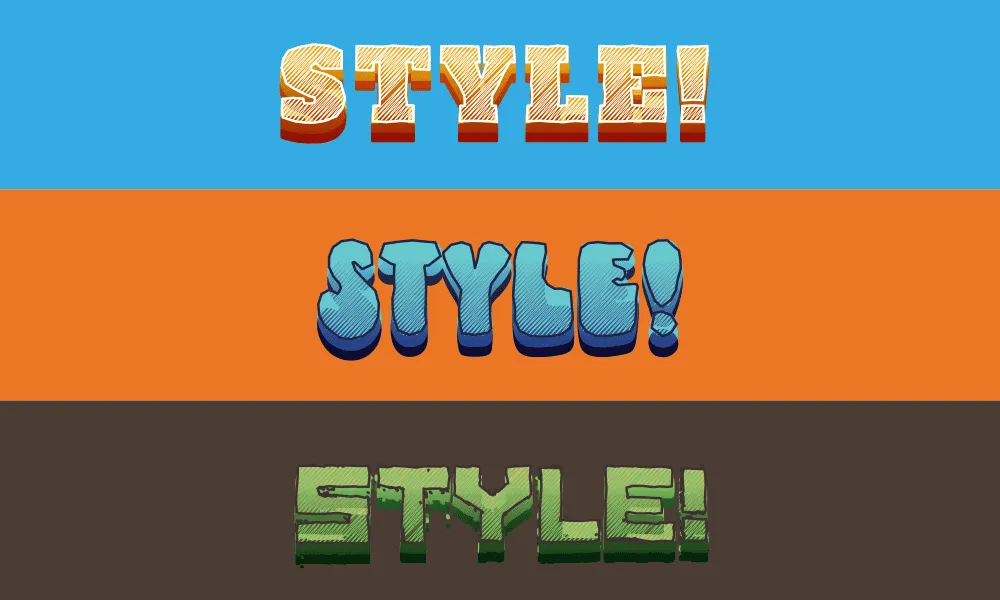
  You can now explore multiple color variations and fonts without doing the same amount of work all over again.
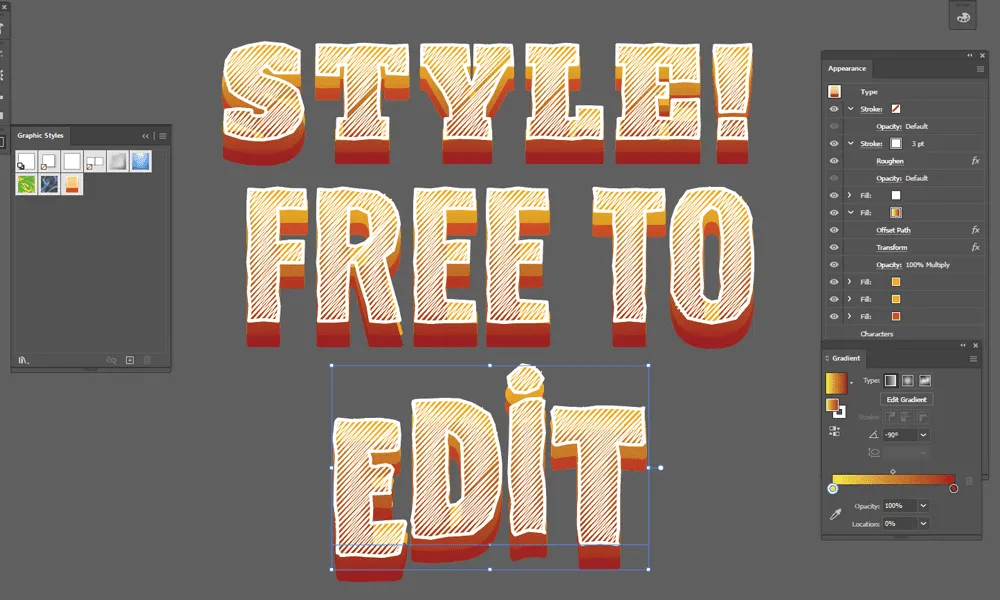
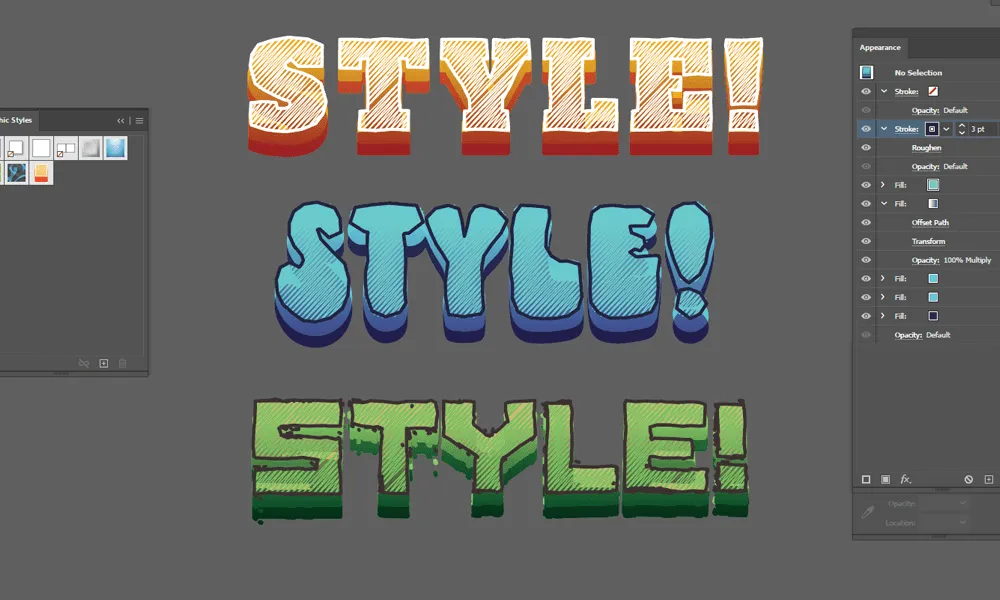
How To Add Style To Your Text With Adobe Illustrator Step 19-2
How To Add Style To Your Text With Adobe Illustrator Step 19-3
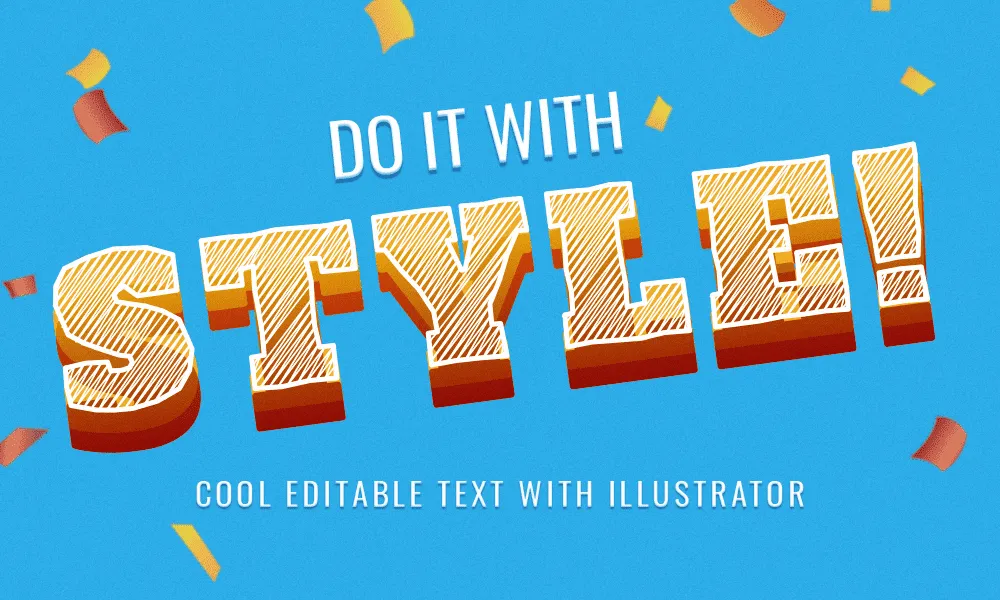
How To Add Style To Your Text With Adobe Illustrator Final Image