EZ Tip: How to clean up transparency and stray points for printing with Adobe Photoshop

Whether you're running a print-on-demand business or a local shop, you are facing a similar problem: the print files need to be cleaned up of transparency and blending effects. Printers don't know how to interpret Opacity and you'll end up with a messy final print, most of the time with unwanted...

Cover Image for EZ Tip: How to clean up transparency and stray points for printing with Adobe Photoshop

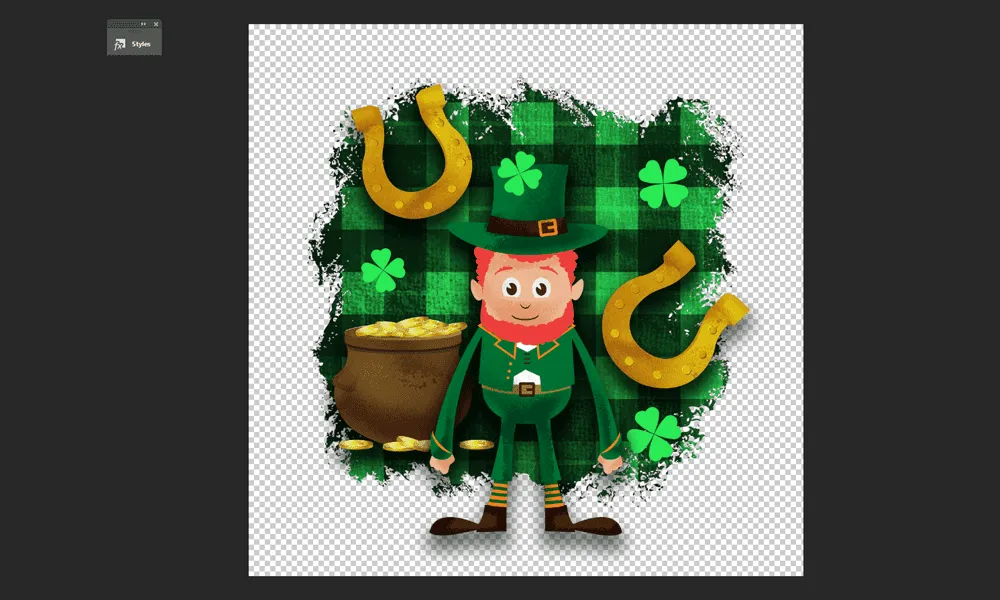
Whether you're running a print-on-demand business or a local shop, you are facing a similar problem: the print files need to be cleaned up of transparency and blending effects. Printers don't know how to interpret Opacity and you'll end up with a messy final print, most of the time with unwanted results. If you're getting ready-made designs, then these steps are not necessary. But if you've made your own or you've customized designs from templates, then it might be worth going through this process to save yourself a headache and raw materials. Let's learn how. For this instance, we'll use a base composition for St. Paddy's, with some Drop Shadows and stray dots.
How to clean up transparency for printing with Photoshop Final

STEP 1

Add a contrast Fill layer under all the artwork. This can be any color, but make sure it's not used in your art.
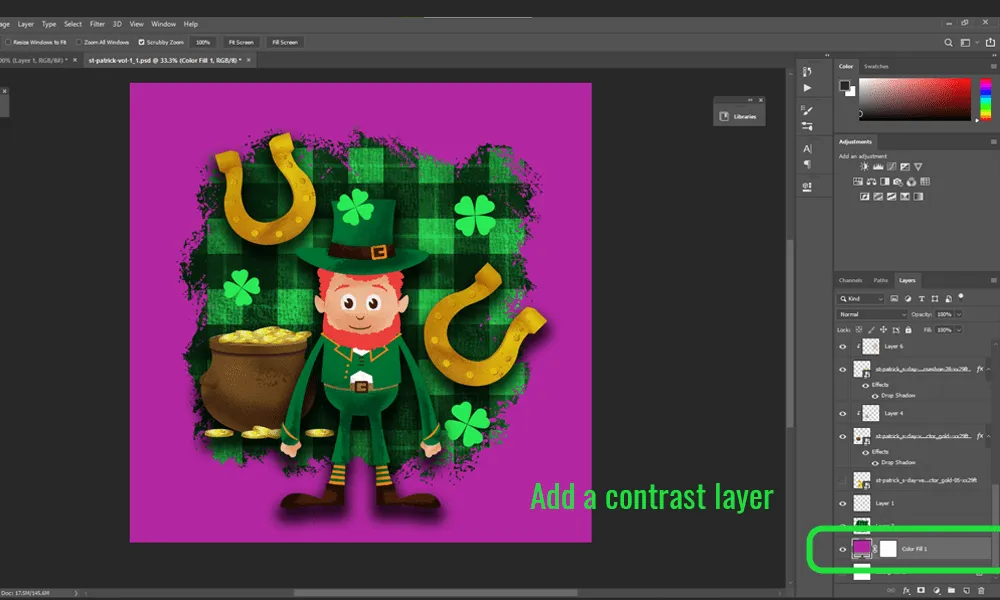
How to clean up transparency for printing with Photoshop Step 1

STEP 2

Look for color variations of purple, that's an indicator there is an element that's transparent.
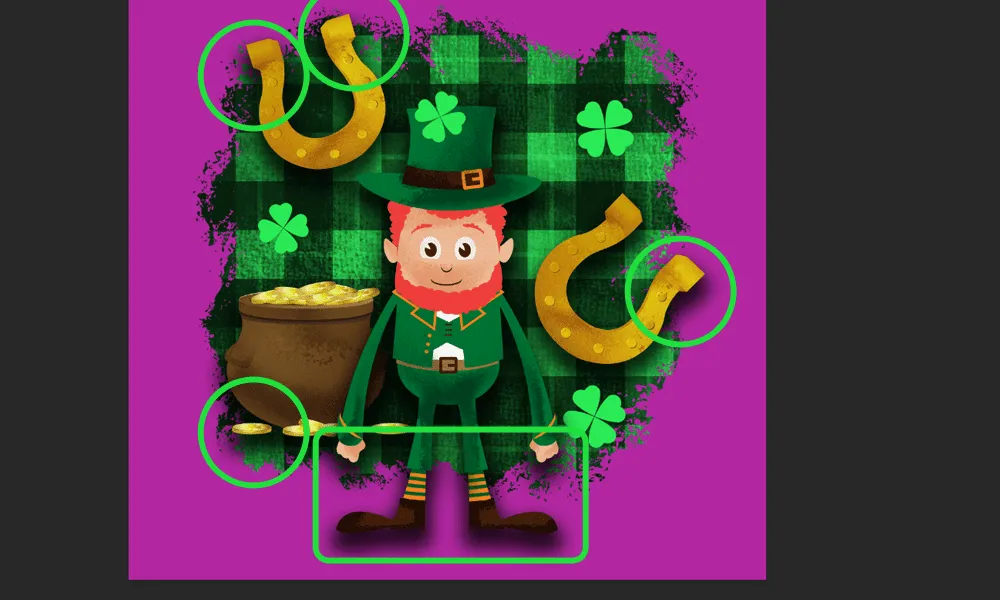
How to clean up transparency for printing with Photoshop Step 2

STEP 3

Go to the element that's creating that effect and release it to layers. This will create a new layer under that layer. It will have a "Drop Shadow" appended to its name and an extra icon near the layer.
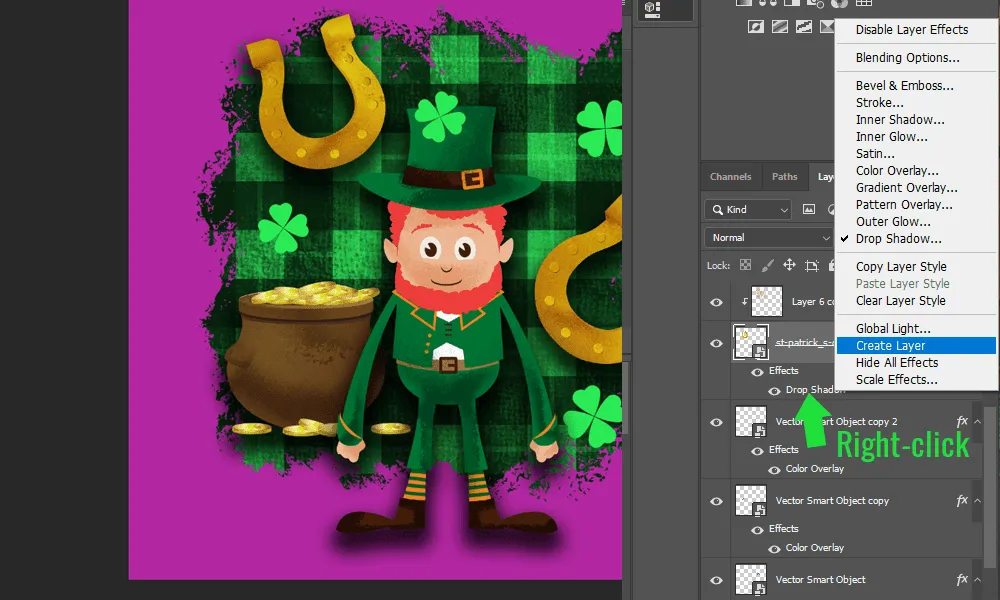
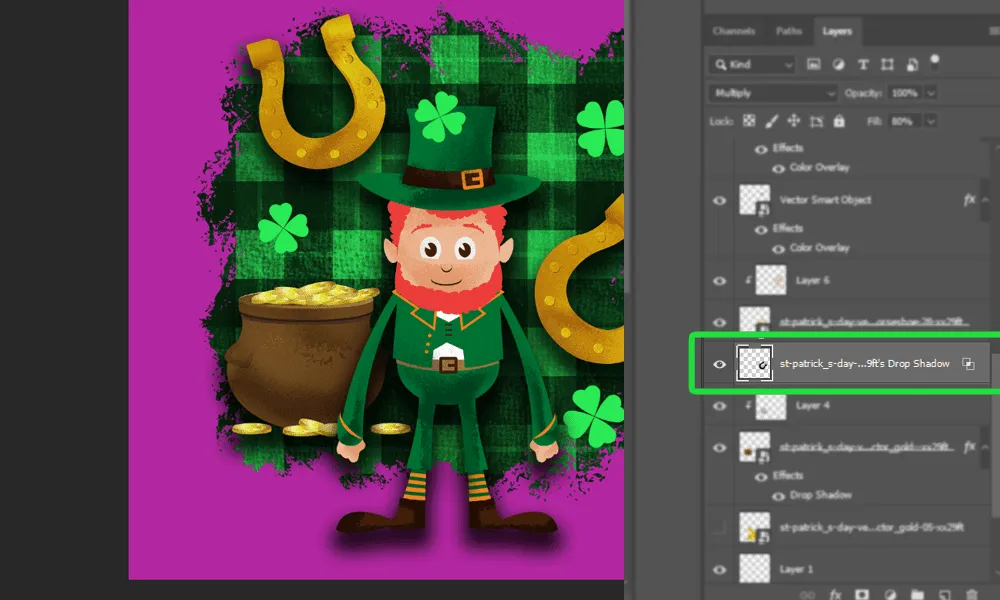
How to clean up transparency for printing with Photoshop Step 3-1
How to clean up transparency for printing with Photoshop Step 3-2

STEP 4

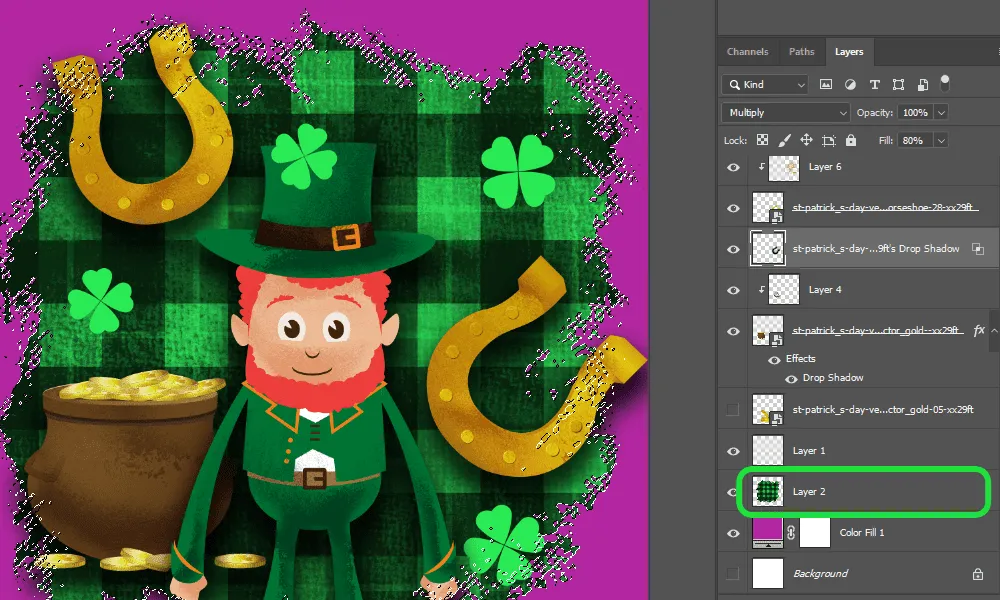
Find the layer that you are using as background and CMD + Click it to load a selection of its shape. If you are using more layers, select all the background layers, drag them over the "New Layer" icon and press CMD + E (merge selected).
How to clean up transparency for printing with Photoshop Step 4

STEP 5

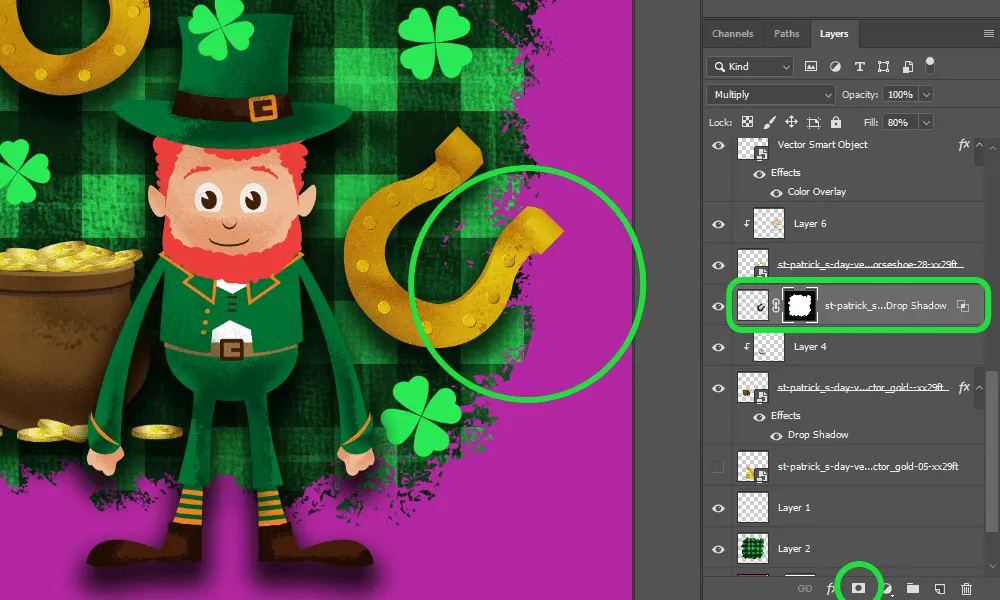
Select the previous "Drop Shadow" layer and add a mask to it.  Notice that now the Shadow effect applies only within the confines of the background.  
How to clean up transparency for printing with Photoshop Step 5

STEP 6

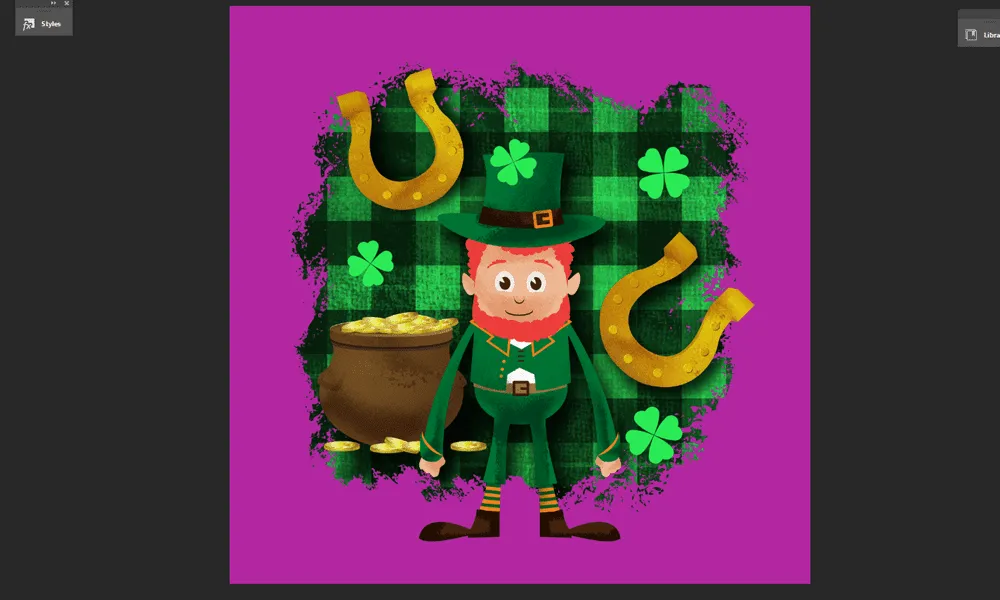
Repeat the steps for the other Drop Shadow effects (or any other effects you have added)
How to clean up transparency for printing with Photoshop Step 6

STEP 7

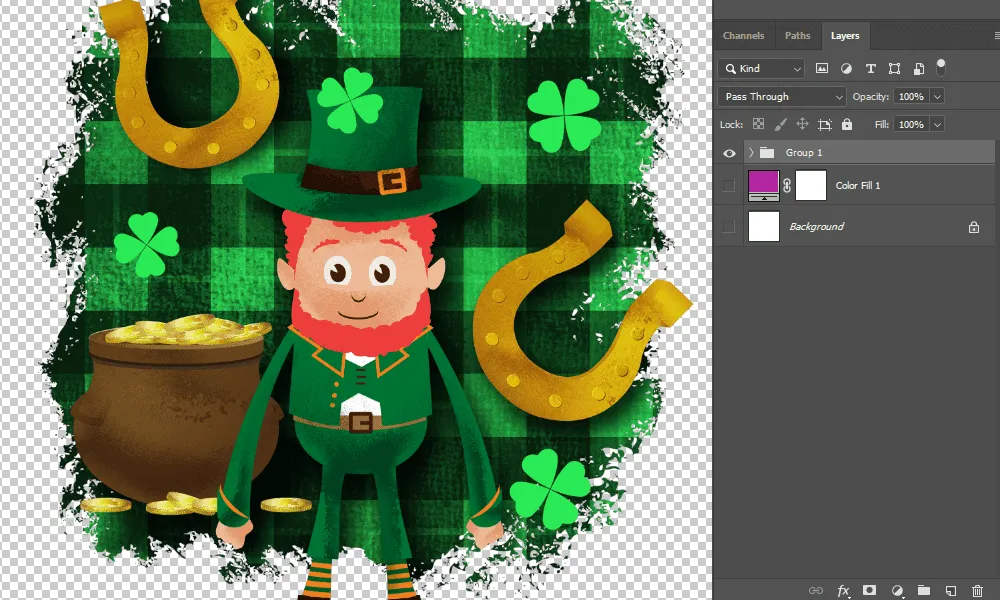
Put all the work layers in a single group, then turn off the visibility of the magenta layer. Select all layers, then press CMD + G.
How to clean up transparency for printing with Photoshop Step 7

STEP 8

Press CMD + Option + Shift + E to create a merged copy of all the layers.
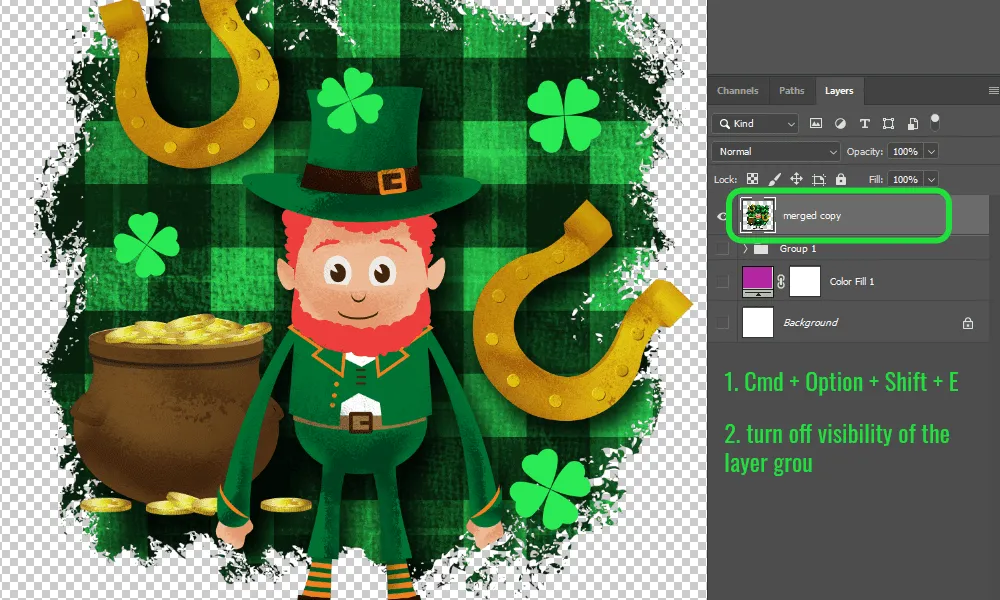
How to clean up transparency for printing with Photoshop Step 8

STEP 9

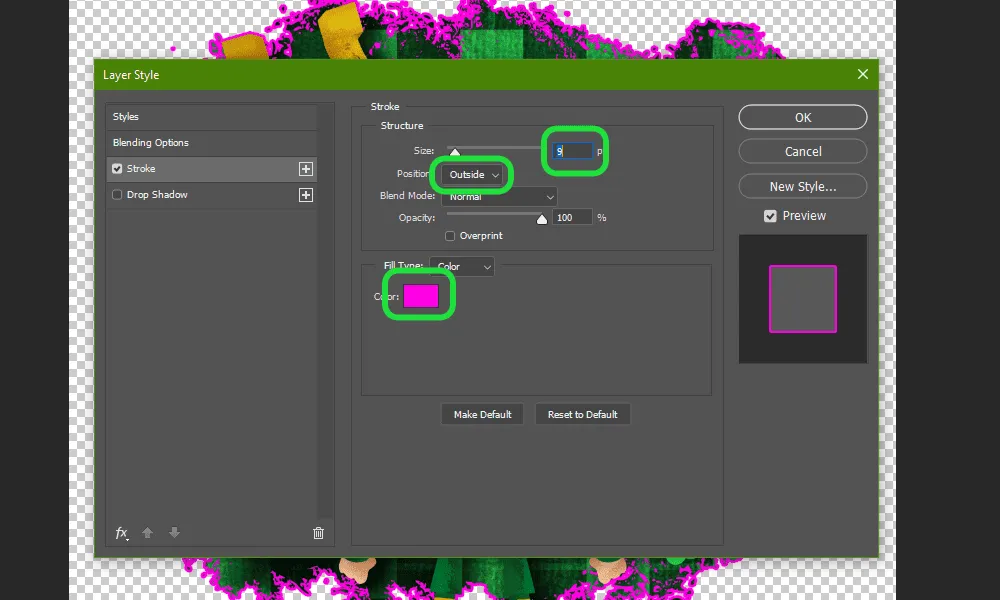
Add a magenta stroke to this new layer. This will highlight any unwanted, stray points.
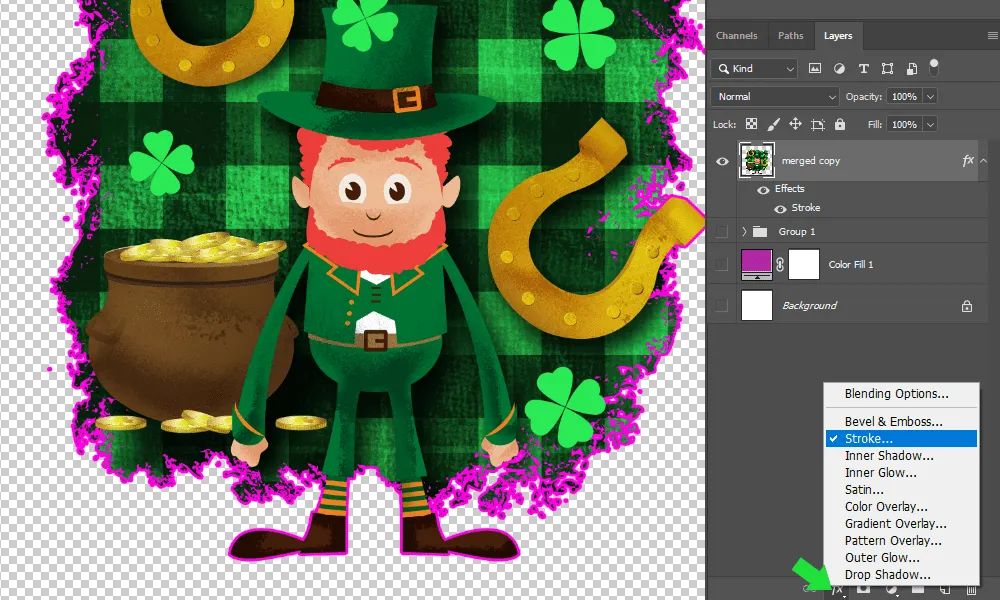
How to clean up transparency for printing with Photoshop Step 9-1
How to clean up transparency for printing with Photoshop Step 9-2

STEP 10

Erase the unwanted areas with the Eraser Tool (E).
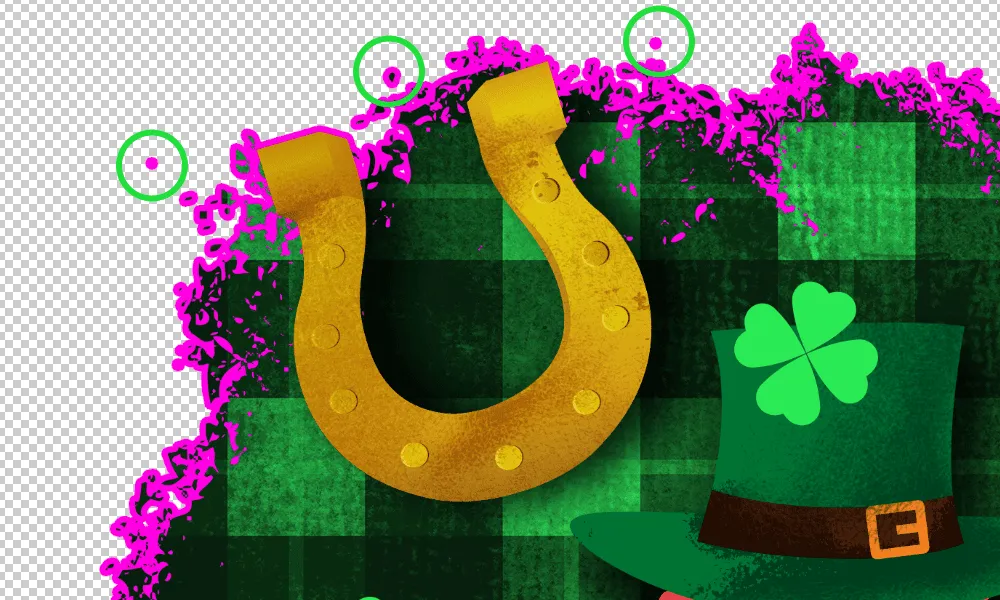
How to clean up transparency for printing with Photoshop Step 10

STEP 11

Remove the Stroke effect. Drag-drop it onto the bin icon.
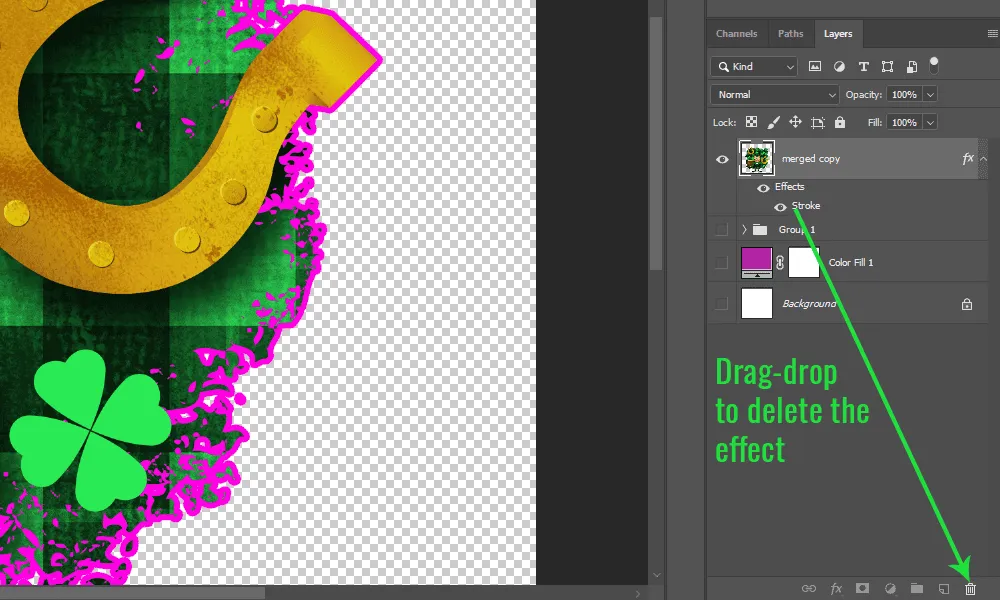
How to clean up transparency for printing with Photoshop Step 11

BONUS CASE

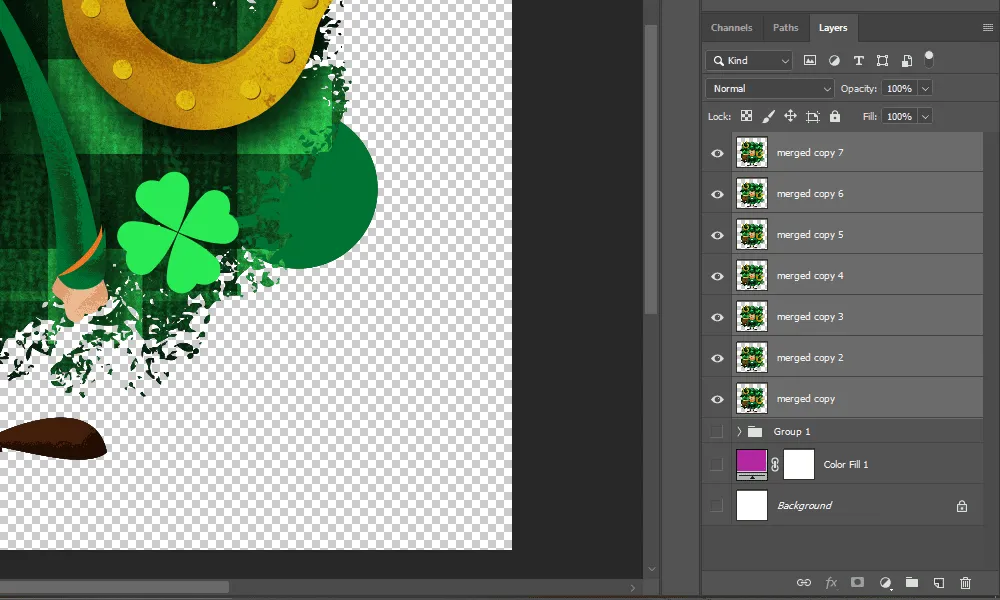
In case you have a transparent object that needs to go over the edge, you can flatten transparency by duplicating the merged layer multiple times, until it's no longer transparent. 
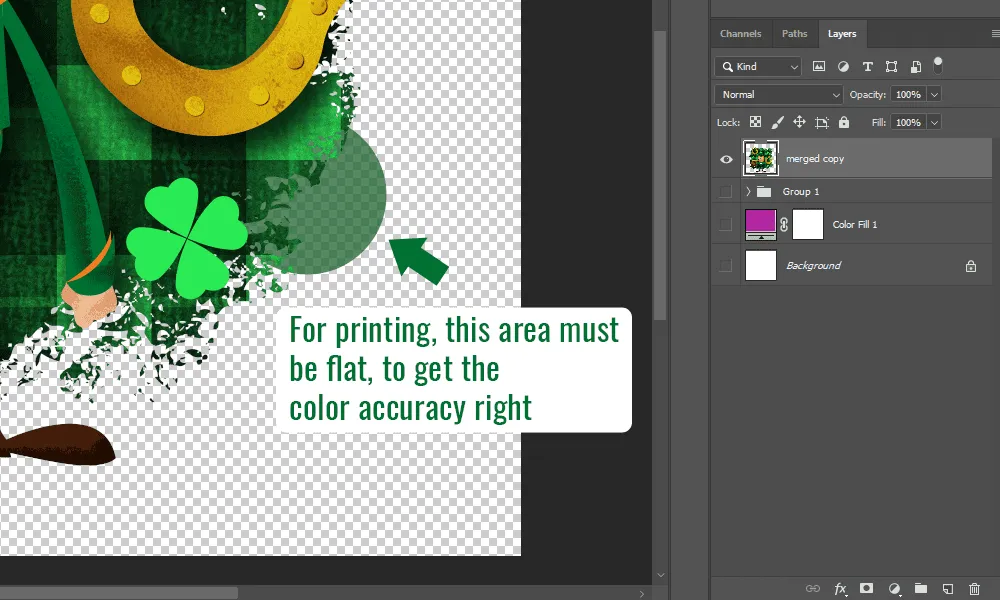
How to clean up transparency for printing with Photoshop BONUS 1

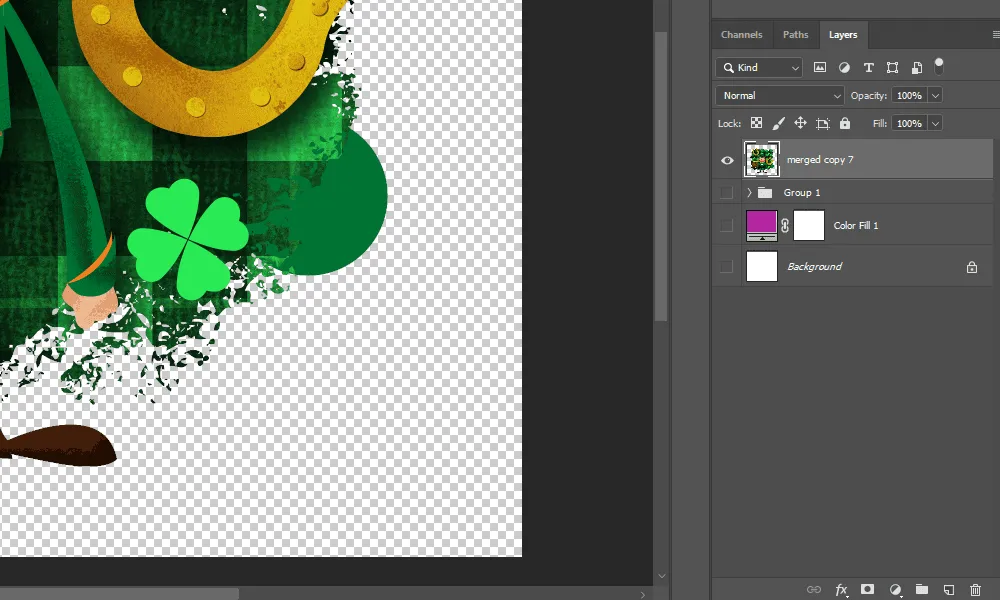
Select all the duplicated layers and press CMD + E to merge them again.
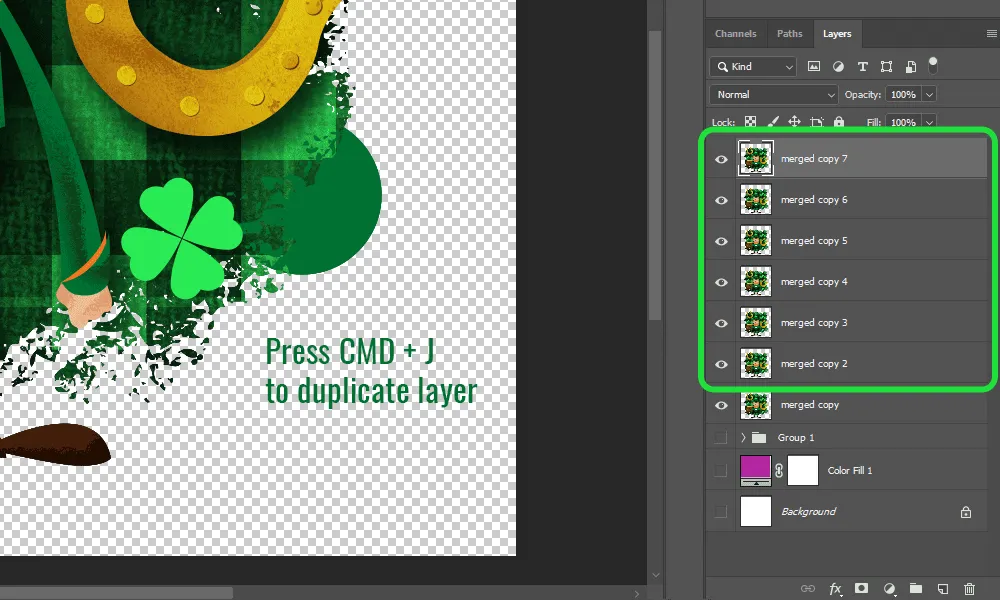
How to clean up transparency for printing with Photoshop BONUS 2
How to clean up transparency for printing with Photoshop BONUS 3
How to clean up transparency for printing with Photoshop BONUS 4

  Now your file is ready to send to the printer.