EZ Tip: How to list all the images from one folder into a contact sheet with Photoshop

Dealing with large amounts of images can sometimes be very frustrating. It is even more annoying if you are dealing with many .EPS, .SVG or .Ai files, because you have to open the file first, to see what's in it. It becomes a tedious cycle of open - inspect - close that slowly gnaws at your...

Cover Image for EZ Tip: How to list all the images from one folder into a contact sheet with Photoshop

Dealing with large amounts of images can sometimes be very frustrating. It is even more annoying if you are dealing with many .EPS, .SVG or .Ai files, because you have to open the file first, to see what's in it. It becomes a tedious cycle of open - inspect - close that slowly gnaws at your productivity. But fret no longer, for I have the solution to that headache. This has been my solution for years and surely it will improve your workflow, as well.  

So what are contact sheets?

A contact sheet is an image that contains the thumbnails and the file names of the image files within a folder. This image can be generated programmatically in a number of ways, Photoshop being the easiest.  

How to do it

Step 1

In Photoshop, go to File -> New and create a new document, at 1920 x 1080 px @ 72 dpi.  
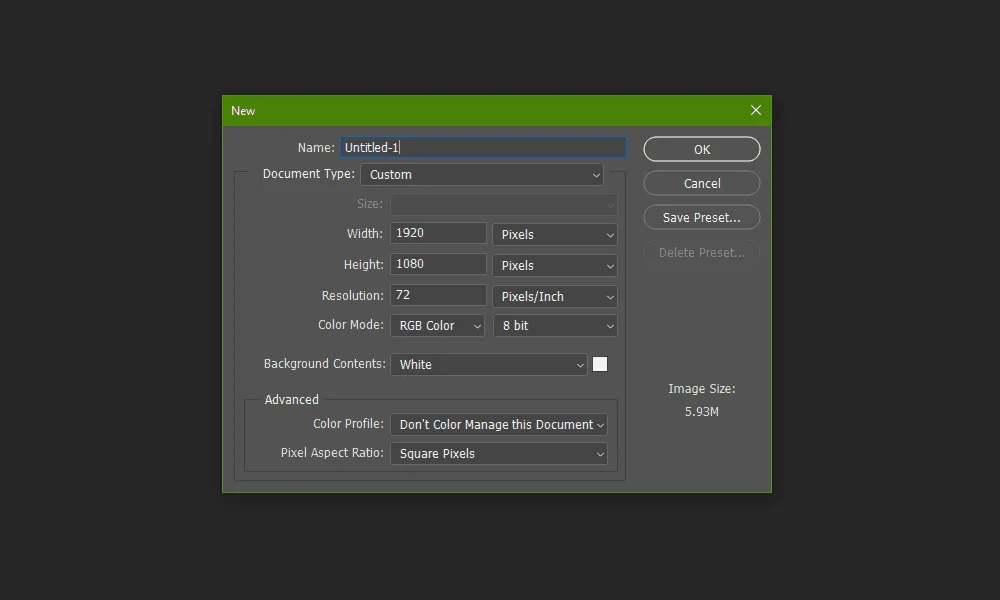
How to list all the images from one folder into a contact sheet with Photoshop Step 1

Step 2 

Go to File -> Automate -> Contact Sheet II.  
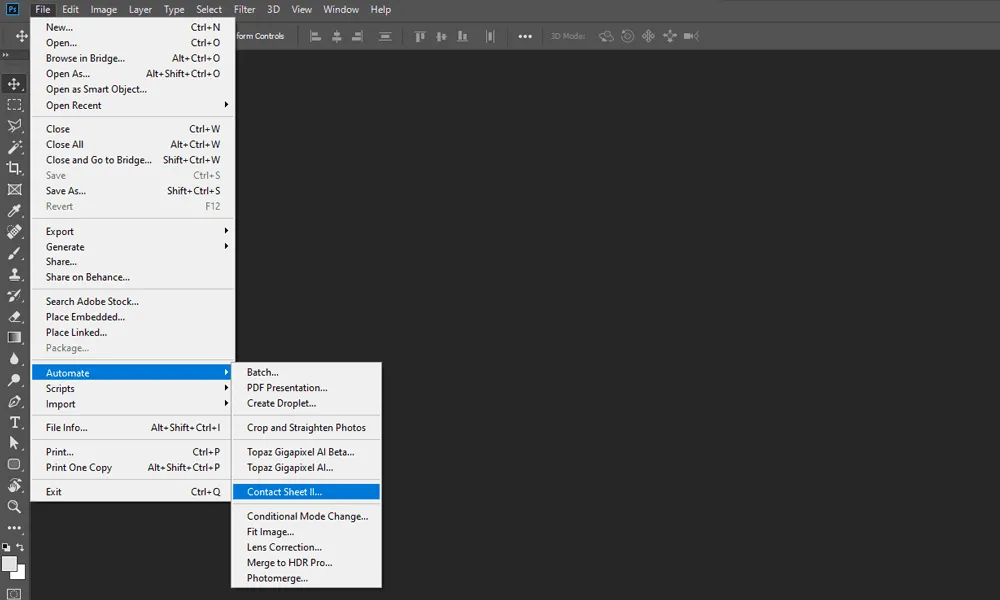
How to list all the images from one folder into a contact sheet with Photoshop Step 2

Step 3

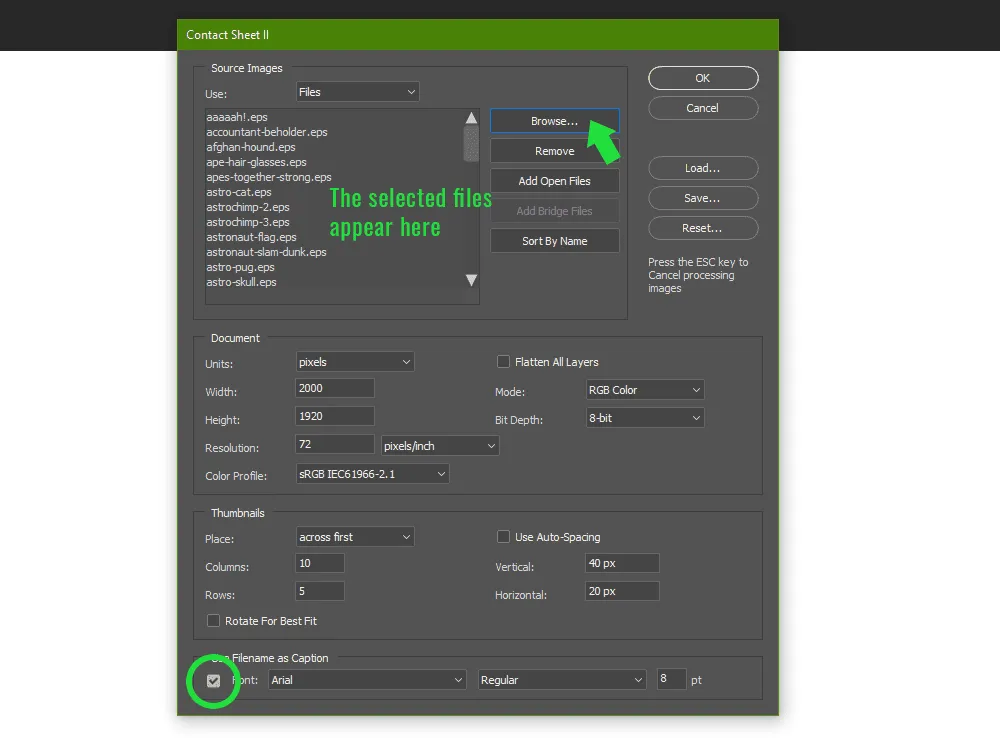
 In the pop-up window, select Files. Then, add the file names as captions and let it run.
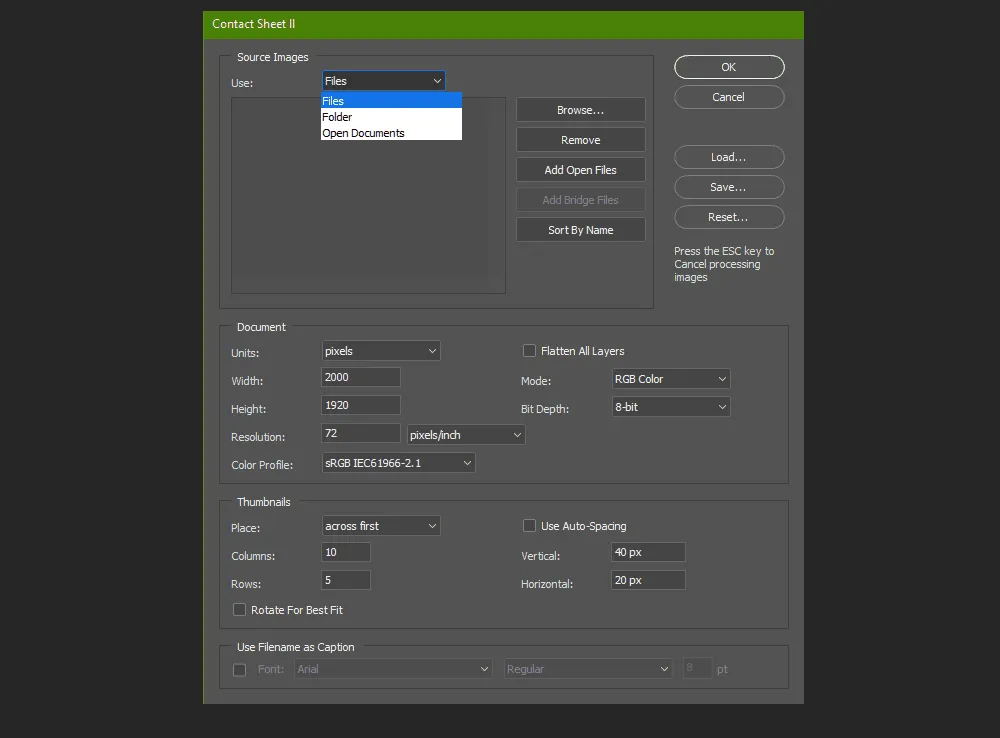
How to list all the images from one folder into a contact sheet with Photoshop Step 3
How to list all the images from one folder into a contact sheet with Photoshop Step 3-1

Step 4 

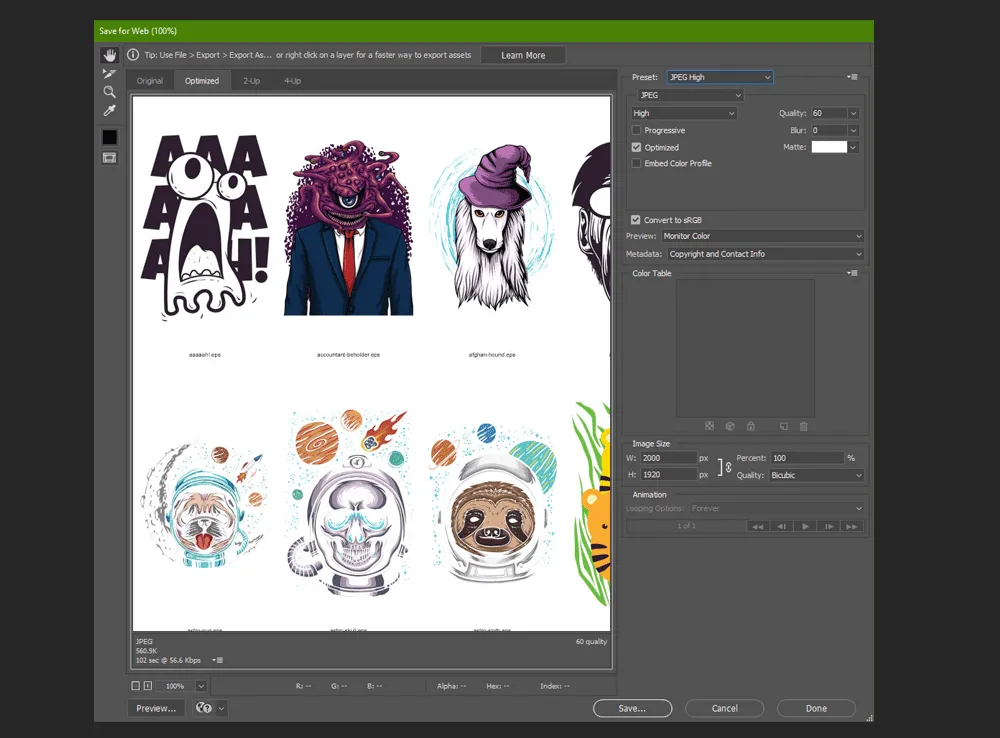
Wait for it to complete, save your contact sheet in the folder as a .JPG and it's done.
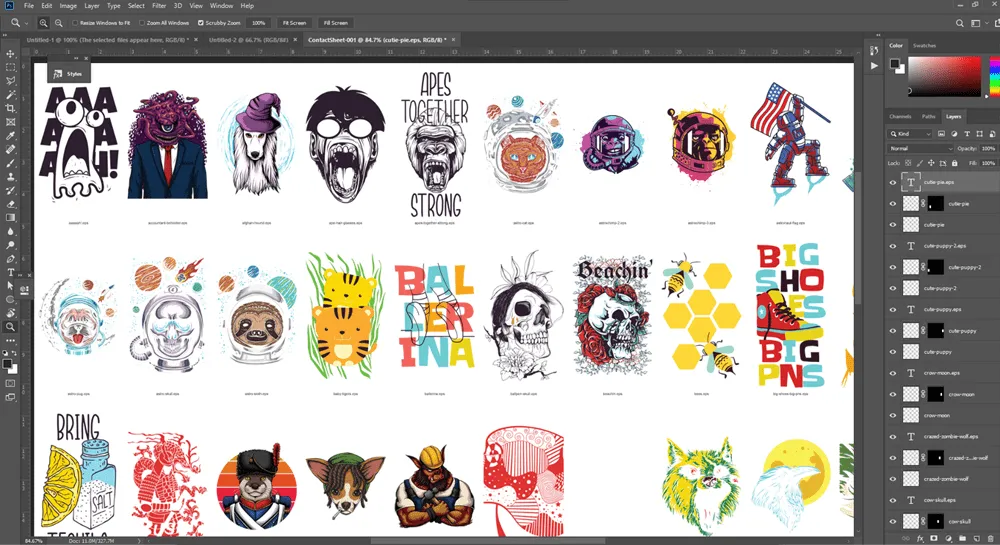
How to list all the images from one folder into a contact sheet with Photoshop Step 4
How to list all the images from one folder into a contact sheet with Photoshop Step 4-1